
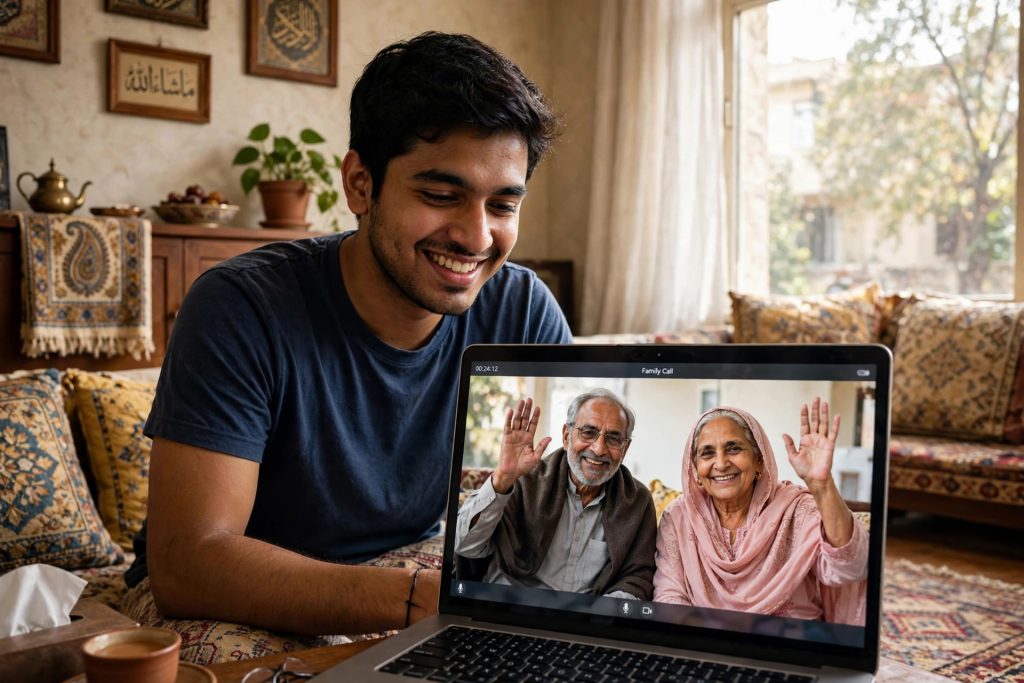
Almost everyone in Pakistan uses WhatsApp, but not everyone has it. Maybe your father uses a basic phone, your client abroad prefers email, or a relative never installed the app. Until now, those people simply could not join your WhatsApp calls.
That changed on 14 October 2026, when WhatsApp announced guest calling. With this new feature, anyone can join a WhatsApp voice or video call as a guest — straight from a computer browser, without a WhatsApp account and without installing anything.
In this guide, you will learn exactly how it works: how a host creates a call link, how a guest joins in under a minute, the limits you should know, and the situations where guest calling is genuinely useful.
What Is WhatsApp Guest Calling?
Guest calling lets a WhatsApp user invite people who do not have WhatsApp to a call. The host creates a special call link inside WhatsApp and shares it with anyone — by SMS, email, or any other app. The guest simply opens the link in a desktop web browser, types their name, and joins the call after the host approves them.
There is nothing to download and no sign-up form. For families spread across Pakistan and abroad, this removes the most common problem: “Install WhatsApp first, then we can talk.”
Key Facts You Should Know
- Up to 32 people can be on the call at the same time, including guests.
- No time limit. Unlike some free meeting tools, the call does not cut off after 40 or 60 minutes.
- End-to-end encrypted. Guest calls have the same encryption as normal WhatsApp calls, so nobody outside the call can listen in.
- The host stays in control. Guests wait in a “waiting room” until the host lets them in, and the host can remove a guest at any time.
- Guests’ privacy is protected. Guests cannot see other participants’ phone numbers.
- Guests cannot send messages or add members. A guest joins only the call itself — no chats, no groups.
- Guests can still participate properly. They can share their screen, raise a hand, and send emoji reactions during the call.
- WhatsApp has also announced that calendar scheduling (through Google Calendar and Outlook) is planned to arrive later this year, which will make these links even easier to plan in advance.
For Hosts: How to Create a WhatsApp Call Link
You need the WhatsApp app and an account to host. The steps take less than a minute:
- Open WhatsApp on your phone.
- Go to the Calls tab at the bottom of the screen.
- Tap the + (plus) button to start a new call.
- Select the option to create a call link.
- Choose whether the link is for a voice call or a video call.
- WhatsApp generates your link. Tap to copy it, or share it directly through SMS, email, or any other app.
- Send the link to your guests and tell them to open it on a computer or laptop browser.
- When a guest tries to join, you will see them in the waiting room. Approve them to let them into the call.
That’s it. You can create the link a few minutes before the call, or in advance if you are planning a family call or a business meeting.
For Guests: How to Join From a Browser
If someone has sent you a call link and you don’t have WhatsApp, do this:
- Open the link on a computer or laptop — guest joining works from a desktop browser such as Chrome or Edge.
- The page will open in your browser. No download and no account are needed.
- Type your name when asked. This is the name the host and other participants will see.
- Allow the browser to use your microphone and camera when it asks for permission.
- Tap or click the option to request to join.
- Wait a moment in the waiting room. The host will approve you, and you will enter the call.
During the call, you can mute yourself, turn your camera on or off, share your screen if you need to show something, and use reactions — just like a normal participant.
When Guest Calling Is Actually Useful
- Family abroad: Relatives who never installed WhatsApp can now join family video calls from their computer.
- Business and client calls: You can invite a client to a proper call without forcing them to install an app or create an account first.
- Job interviews and admissions: Candidates can join from a laptop browser with one click, which feels far more professional than a shaky phone arrangement.
- Online classes and tuition: A teacher can share one link with students, including those who join from a shared family computer.
- Quick group decisions: Planning a trip or an event with friends who are not all on WhatsApp is no longer a problem.
Limits and Safety Tips
Guest calling is generous, but it has clear limits. Guests join only through a desktop browser, they cannot message anyone afterwards, and everything depends on the host approving them.
A few safety tips worth following:
- Share the link privately. Anyone holding the link can request to join. Send it to specific people, not in public groups or social media posts.
- Check names in the waiting room. Only approve people you actually invited — the name shown is typed by the guest, so if a name looks wrong, don’t let them in.
- Create a fresh link for each call instead of reusing an old one that many people may still have.
FAQs
Q: Does a guest need to install WhatsApp or create an account?
No. That is the whole point of the feature. A guest only needs the call link and a desktop web browser. They open the link, type their name, and join after the host approves them. Nothing is installed and no account or phone number is required from the guest’s side.
Q: Is there any time limit on guest calls?
No. WhatsApp has confirmed there is no time limit on these calls, and no cost for joining as a guest. This makes guest calling a strong free alternative to meeting tools that restrict free calls to 40 minutes or push you toward a paid plan for longer meetings.
Q: Can guests see my phone number?
No. WhatsApp has designed guest calling so that guests cannot see other participants’ phone numbers during the call. They also cannot send you messages or add you to anything afterwards. Guests only see the names people choose to display inside the call itself.
Q: How many people can join one call, and can a guest share their screen?
Up to 32 people can join a single call, including guests. Guests are not just silent listeners — they can share their screen, raise a hand, and send emoji reactions, which makes the feature practical for work presentations, classes, and family calls alike.
Sources
- https://blog.whatsapp.com/now-you-can-invite-anyone-to-a-whatsapp-call-no-account-needed-no-cost-no-time-limit
- https://techbriefly.com/2026/10/15/whatsapp-guests-can-now-join-calls-through-a-browser/