
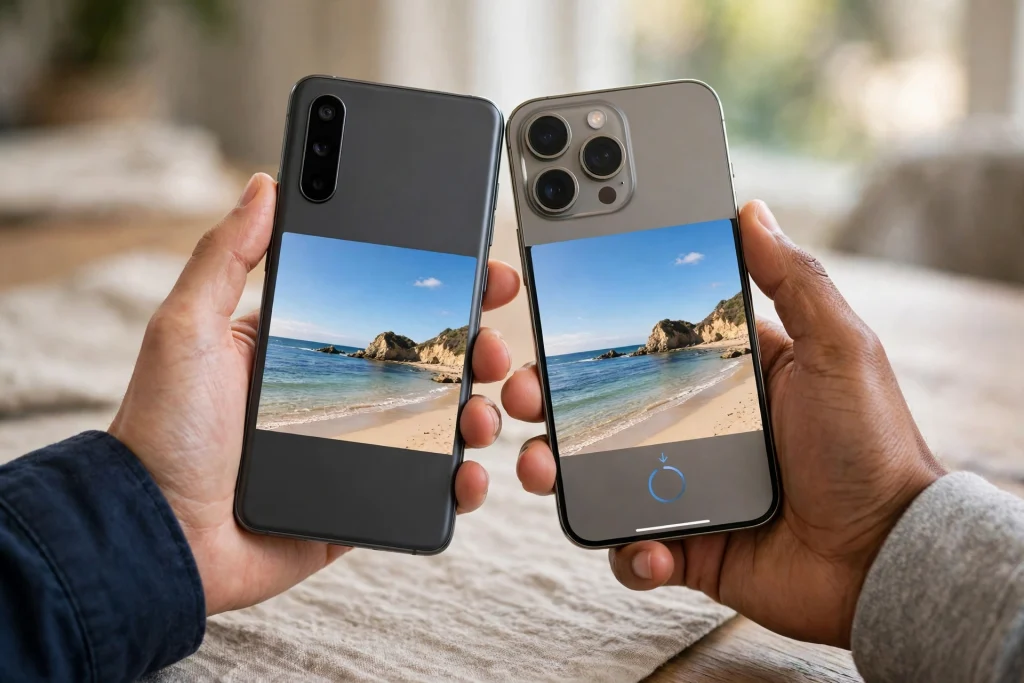
For years, sharing a file between a Samsung phone and an iPhone meant finding a workaround. You would upload the photo to WhatsApp and lose quality, email it to yourself, or install a third-party transfer app on both phones and hope it worked. That friction is familiar in many Pakistani households, where one family member uses a Samsung Galaxy A phone and another uses an iPhone, and a simple job like sending wedding photos or a university assignment turns into a small project.
That is why the change reported in October 2026 matters. Samsung’s Quick Share has gained a “Share with Apple devices” toggle that talks to Apple’s AirDrop protocol, so a Galaxy phone can send photos, videos and documents directly to an iPhone, iPad or Mac, with no third-party app in the middle. This guide explains exactly what changed, which Galaxy A phones are included, how to turn the feature on, and how to send your first file safely.
One important warning comes first, because it affects everything else in this article. The Pakistan rollout has not been individually confirmed. One UI 9 rolls out by region, in stages, so the toggle may appear on your phone on a different date from someone in another country, or even from another Galaxy A owner in Pakistan. Do not treat any date in this article as a promised Pakistan date. The steps below tell you how to check your own phone, so you will know for certain whether the feature has reached you, rather than guessing from a headline.
What actually changed: Quick Share can now talk to AirDrop
Quick Share is Samsung’s built-in file-sharing tool for Galaxy phones. Until now, it worked between Samsung and other Android phones, but it could not send directly to an Apple device. AirDrop is Apple’s built-in file-sharing system for iPhones, iPads and Macs. The two systems did not speak to each other, which is why you needed a workaround.
The new toggle changes that. When you turn on “Share with Apple devices” in Quick Share, your Galaxy phone can find a nearby Apple device that has its AirDrop visibility set to Everyone, and send a file to it in the same way you would send a file to another Android phone. The person receiving the file does not need to install anything extra, and you do not need to install anything extra either. Both sides use the sharing tools already built into their phones.
Note the names carefully, because they are easy to mix up. “AirDrop” is Apple’s protocol name. Samsung’s toggle is called “Share with Apple devices”. Samsung has not claimed to own the AirDrop name, and this article does not claim that Samsung licensed the AirDrop trademark. In plain terms: Samsung’s switch makes Quick Share compatible with Apple’s AirDrop system, and that is the feature you will turn on.
This capability did not start with the Galaxy A series. It started on Pixel 10 phones in late 2025, then came to the Galaxy S26 series in March 2026 and to the S25 and S24 FE models. With the One UI 9 update, which is based on Android 17, it has now reached the Galaxy A56 and Galaxy A57. That order matters, because it explains why the feature is still rolling out: it began on flagship phones and is now moving down to the mid-range A series, one update at a time.
There is one more honesty note worth stating plainly. As of 21 October 2026, Samsung’s official Quick Share page still listed only the S26 series for this Apple-device sharing. The A56 and A57 support reported by tech sites is real in the sense that it is working on updated phones, but it is best described as working-but-unofficial until Samsung updates its own page to list the A models. That does not mean you should avoid the feature. It means you should check your own phone for the toggle, rather than assuming Samsung’s website will confirm it for you yet.
Which Galaxy A phones can do this, and which cannot
This is the section where you need to be careful, because different sources disagree about some models. The A56 and A57 are confirmed by multiple reports. The A55 is claimed by some sources but not confirmed by others. The A36 and A37 are not included, according to testing reported by Galaxyclub. Do not assume that every Galaxy A phone will get this feature, and do not promise it to a friend with a different model until you have checked the table below.
| Model | Status for Apple-device sharing | What this means for you |
|---|---|---|
| Galaxy A56 | Confirmed | Included with the One UI 9 update, where the update has rolled out |
| Galaxy A57 | Confirmed | Included with the One UI 9 update, where the update has rolled out |
| Galaxy A55 | Claimed but unclear | Some reports say it is included, but Galaxyclub notes its One UI 9 beta lacked the feature, so do not count on it yet |
| Galaxy A36 | Not included | Galaxyclub’s own units did not have the feature, so do not expect it |
| Galaxy A37 | Not included | Same as the A36: not included according to Galaxyclub’s testing |
If you own an A55, an A36 or an A37, the honest advice is simple: update your phone, open the Quick Share settings described below, and look for the toggle with your own eyes. If it is there, you have it. If it is not there, no article can give it to you, and you should keep using your current workaround until Samsung confirms otherwise. The same advice applies to any other Galaxy A model not listed in the table. A feature that is not on your phone is not on your phone, whatever a headline says.
This article also keeps a clear boundary with earlier coverage of One UI 9. A previous article on this site covered the One UI 9 update in general. This article is not a repeat of that changelog. It focuses only on the one feature that changes daily life for mixed Samsung and iPhone households: the “Share with Apple devices” toggle, how to switch it on, and how to use it without creating a security problem.
Before you start: check two version numbers
Before you try the steps, check that your phone meets the version requirements reported by AndroidPure. You need Quick Share version 13.8.51.27 or later, and Google Play Services version 26.11.xx or later. If either one is older, the toggle may not appear even after you install One UI 9, and updating those two components is the first thing to try.
To check Quick Share, open Settings, then Apps, and search for Quick Share. Tap it and look at the version number at the bottom of the app info screen. To check Google Play Services, open Settings, then Apps, search for Google Play Services, and look at its version number in the same way. If an update is available for either one, install it from the Google Play Store first, then restart your phone and check the Quick Share settings again.
You also need the One UI 9 update itself. Open Settings, then Software update, and tap Download and install. If the update is available for your phone and region, install it and let the phone restart. If no update is shown, the rollout has not reached your phone yet. That is normal for a staged regional rollout. Check again after a few days rather than trying to force an update from an unofficial source, which can cause far bigger problems than waiting.
On the Apple side, the receiving device needs AirDrop switched on and set to Everyone for the transfer. That setting is covered in the steps below, and it is also the setting you must remember to switch back afterwards for safety.
Step by step: turn on “Share with Apple devices” on your Galaxy
Follow these steps in order. The menu names are the ones reported for One UI 9, and they may look slightly different on your phone depending on your region, but the path is the same.
First, make sure your Galaxy A56 or A57 has the One UI 9 update installed, as described above. Second, open Settings on your Samsung phone. Third, tap Connected devices. Fourth, tap Quick Share. Fifth, look for the toggle called “Share with Apple devices” and switch it on. On some units this toggle is already on by default after the update, so if you find it already switched on, that is normal and you do not need to change anything.
If you do not see the toggle at all, work through this short checklist before concluding that your phone does not have the feature. Check that One UI 9 is installed. Check the Quick Share and Google Play Services versions against the numbers above. Restart the phone and look again. If the toggle is still missing, the rollout has not reached your phone or your model yet, and the correct move is to wait for a later update rather than installing anything from outside the Play Store.
Once the toggle is on, your phone is ready to send. You do not need to pair the two phones in advance, and you do not need to sign in to anything extra. The toggle simply allows Quick Share to look for Apple devices nearby when you share a file.
Step by step: send a file from your Galaxy to an iPhone, iPad or Mac
Sending a file works almost exactly like a normal Quick Share transfer, with one extra step on the receiving device. Here is the full sequence, so nothing is left to guesswork.
On the receiving Apple device, set AirDrop to Everyone first. On an iPhone or iPad, open Settings, tap General, tap AirDrop, and select Everyone. On a Mac, open Finder, click AirDrop in the sidebar, and set the visibility to Everyone. Keep the Apple device unlocked and nearby, with Wi-Fi and Bluetooth switched on. AirDrop needs both to find your phone and transfer the file.
On your Galaxy phone, open the photo, video or document you want to send. Tap the Share button, then tap Quick Share. Your phone will search for nearby devices. The iPhone, iPad or Mac should appear in the list, usually with the device name the owner gave it. Tap that device name. On the Apple device, a prompt will appear asking whether to accept the file. The owner taps Accept, and the transfer begins. When it finishes, the file appears in the Photos app for photos and videos, or in the Files app or Downloads folder for documents, depending on the device.
If the Apple device does not appear in your Quick Share list, do not keep tapping and hoping. Check that AirDrop on the Apple device is still set to Everyone, that both devices are close together, and that Wi-Fi and Bluetooth are on for both. Try switching the “Share with Apple devices” toggle off and on again, then try the share once more. If it still fails, restart both devices and try again. Most failures come from one of these simple causes, not from a broken feature.
One warning from Samsung is worth knowing before your first transfer. Samsung warns that your Galaxy phone may temporarily disconnect from Wi-Fi while it is searching for an Apple device or sending a file, and that transfers to Apple devices may be slower than a regular Quick Share transfer between two Samsung or Android phones. This is expected behaviour, not a fault with your phone. If you are in the middle of a video call or a download on Wi-Fi, finish that first, send the file, and then let the phone reconnect normally. For a very large video, allow extra time and keep both devices close together until the transfer completes.
What you can send, and what to expect
The feature covers the everyday file types people actually share between phones: photos, videos and documents. That covers the most common real-life cases. Sending a batch of photos from a family event to a relative’s iPhone, sending a video clip to a friend, or sending a PDF assignment or office document to a colleague’s iPad are all exactly the kind of transfer this feature is built for.
It does not turn your Galaxy into an iPhone, and it does not give you access to Apple’s other services. You cannot use it to send an app, to sync your whole phone, or to make an iPhone behave like a Samsung phone. Think of it as a bridge for individual files, not a merger of the two systems. That is still a big improvement, because the single-file bridge was the missing piece for years.
For students, this solves a recurring headache. A group project where one student has a Galaxy A56 and another has an iPhone no longer needs a compressed WhatsApp copy of every document and photo. For families, it means full-quality photos can go straight to the relative who asked for them. For small shops and offices, it means a price list, a receipt photo or a document can be sent to a customer’s or colleague’s iPhone on the spot, without asking them to install yet another app.
Troubleshooting: when the transfer does not work
If the feature is switched on but the transfer fails, work through these checks in order, and stop at the one that fixes it.
First, confirm both devices are updated. The Galaxy needs One UI 9, Quick Share 13.8.51.27 or later, and Google Play Services 26.11.xx or later. The Apple device needs a recent version of iOS, iPadOS or macOS that supports AirDrop. An old system on either side is the most common silent cause of failure.
Second, confirm AirDrop is set to Everyone on the Apple device, not Contacts Only. If it is set to Contacts Only and your number or email is not in the owner’s contacts, your phone will not appear at all. This is by design, and it is also the reason for the safety step at the end of this article.
Third, confirm Wi-Fi and Bluetooth are switched on for both devices, and that the two devices are within a few feet of each other. Walls, distance and a phone in another room will all stop the transfer from starting.
Fourth, remember Samsung’s warning about the temporary Wi-Fi disconnect. If your internet stops briefly during the search or the transfer, wait for it to finish rather than restarting the phone in the middle. Interrupting the transfer to fix the Wi-Fi will only break the transfer.
Fifth, if everything above is correct and it still fails, restart both devices, turn the “Share with Apple devices” toggle off and on again, and try with a single small photo first. If a small photo works but a large video fails, the problem is likely the size of the file and the slower transfer speed Samsung warns about, so try again with both devices close together and plenty of time.
If none of these steps work, the most likely explanation is that the feature has not fully rolled out to your phone or region yet, even if the toggle is visible. In that case, keep your current workaround for now and check again after the next software update. Do not install unofficial software that promises to force the feature on, because that risks your phone’s security for a convenience feature.
Stay safe: switch AirDrop back to Contacts Only after sharing
This is the most important step in the whole article, and it is easy to forget. Setting AirDrop to Everyone is necessary for the transfer, because your Galaxy is not in the iPhone owner’s contacts list in the way Apple expects. But leaving it on Everyone afterwards means any stranger nearby could try to send files to that iPhone or iPad.
As soon as your transfer is finished, go back to Settings, then General, then AirDrop on the iPhone or iPad, and switch it back to Contacts Only. On a Mac, go back to Finder, then AirDrop, and set the visibility back to Contacts Only. Make this a habit every single time you use the feature. The transfer takes a minute, and the safety step takes five seconds. There is no reason to leave the door open after you have walked through it.
The same habit applies if you are the iPhone owner helping a Samsung-using friend. Set it to Everyone, accept the file, then switch it straight back. If you share files this way often, it is worth telling the other person about this step too, because many people have never changed their AirDrop setting and do not know it is still on Everyone from a previous transfer.
What this does not mean for Pakistan yet
For readers in Pakistan, the honest summary is this. The feature is real, it is confirmed on the Galaxy A56 and A57, and the steps in this article are the steps to use it. But the One UI 9 rollout reaches different regions at different times, and no Pakistan-specific date has been individually confirmed. If your A56 or A57 does not show the update or the toggle yet, that does not mean the reports are false. It means your turn in the rollout has not come yet.
Check your own phone rather than relying on a date someone quotes online. Open Settings, then Software update, and see what your phone says. Open the Quick Share settings and look for the toggle. Those two checks are the only reliable answer for your phone, and they take less than a minute. When the toggle appears, you are ready to follow the steps above. Until then, keep using WhatsApp, email or a transfer app as before, and check again after the next update.
It is also worth keeping expectations realistic about speed and polish. Samsung itself warns that transfers to Apple devices may be slower than regular Quick Share, and the temporary Wi-Fi disconnect is part of how the feature works. This is a first-generation bridge between two systems that were never designed to work together. It solves the real problem, which is getting a file from a Galaxy to an iPhone without extra apps, but it is not yet as smooth as sharing between two Samsung phones. That is a fair trade for most people, as long as they know it in advance.
For context, this is a sign of where phone sharing is heading. A year ago, the idea of a Galaxy phone sending a file directly to an iPhone with built-in tools sounded unlikely. Now it is working on flagship phones and reaching mid-range Galaxy A phones. The practical result is simple: the phone in your pocket matters less when you need to share a file, and that is good news for every mixed-device family, classroom and workplace in Pakistan.
This news was first covered in detail by Android Police, which reported the Galaxy A56 and A57 gaining the feature with the One UI 9 update.
FAQs
Does the Galaxy A56 really share files with an iPhone now?
Yes, where the One UI 9 update has rolled out. With One UI 9 installed and the “Share with Apple devices” toggle switched on in Settings, then Connected devices, then Quick Share, a Galaxy A56 can send photos, videos and documents to a nearby iPhone, iPad or Mac that has AirDrop set to Everyone. The same applies to the Galaxy A57. If the toggle is not on your phone yet, the rollout has not reached you, and you should check again after the next software update.
Does the Galaxy A55, A36 or A37 also get this feature?
Not confirmed. The A55 is claimed by some reports but Galaxyclub says it is unclear, because its One UI 9 beta lacked the feature. The A36 and A37 are not included according to Galaxyclub’s own units. Do not promise this feature for those models. Update the phone, open the Quick Share settings, and look for the toggle yourself. If it is there, you have it. If it is not, the feature is not available on that phone yet.
What do I need on my phone before I try it?
You need the One UI 9 update, Quick Share version 13.8.51.27 or later, and Google Play Services version 26.11.xx or later. On the Apple side, the iPhone, iPad or Mac needs AirDrop set to Everyone during the transfer, with Wi-Fi and Bluetooth switched on. After the transfer, switch AirDrop back to Contacts Only for safety.
Why is the transfer slower than normal Quick Share, and why does my Wi-Fi drop?
Samsung warns that transfers to Apple devices may be slower than regular Quick Share transfers, and that the Galaxy phone may temporarily disconnect from Wi-Fi while searching for an Apple device or sending a file. This is expected behaviour for this feature, not a fault with your phone. Send large files when you are not in the middle of a video call or download, keep both devices close together, and allow extra time for big videos.