
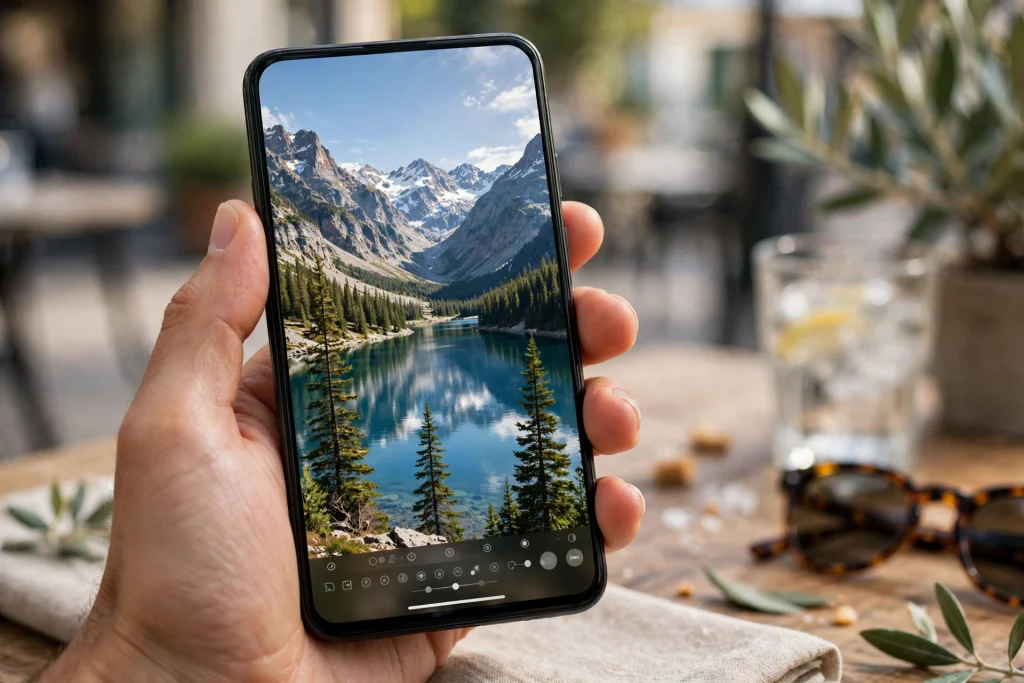
WhatsApp has a new trick for your photos, aimed at one of the most common frustrations on the app: a good photo that does not fit the screen. On 5 November 2026, WABetaInfo reported that WhatsApp is rolling out AI photo expansion on Android. The feature lives in the drawing editor, and with a single tap it can stretch any photo into the tall 9:16 vertical format that Status uses for full-screen viewing. Instead of cropping away the sides of your picture, Meta AI generates new image content around your original photo until it fills the vertical shape.
Before we go further, here is the honest position. This is a beta feature, not a finished public release. It is rolling out gradually to some beta testers on WhatsApp beta for Android 2.26.44.8, available through the Google Play Store. Installing that beta version does not guarantee that you will see the feature, because WhatsApp switches new features on for selected accounts over time. There is no official public release date, it is unclear when it will reach all Android users or the stable version, and there is no iOS report at the time of writing. If you cannot find the button today, the rollout most likely has not reached your account yet, so check in your own app.
What Is WhatsApp AI Photo Expansion?
WhatsApp AI photo expansion is a new editing option inside WhatsApp's drawing editor. When you open a photo to send it in a chat or post it as a Status update, the drawing editor is the screen where you can already draw on the photo, add text and stickers, and crop it. The new option adds a button there that expands the photo to the 9:16 format with a single tap. Tap once, and a photo that was too wide or too square becomes a tall, full-screen vertical image.
What makes it different from the editing tools WhatsApp already has is that it does not simply stretch or crop your photo. Stretching would distort faces, and cropping would cut off the edges — exactly the problem when the best part of the photo is near the edge. Instead, Meta AI generates new image content around the original photo. This technique is often called outpainting. The AI looks at your photo, understands what is in it — the sky, a wall, a lawn, the edge of a room — and paints in extra picture around the sides, top, and bottom so the whole thing fits the taller shape. Your original photo stays in the middle, untouched, and the new material fills the empty space around it.
What Does 9:16 Mean, and Why Does Status Need It?
If you have never heard the term 9:16 before, it is simply a way of describing the shape of a picture. The numbers are a ratio of width to height. A 9:16 image is 9 units wide and 16 units tall, which means it is much taller than it is wide. That is the shape of a modern phone screen held upright, and it is the shape WhatsApp Status, Instagram Stories, TikTok videos, and YouTube Shorts are all designed around.
Most photos people take do not naturally come out in 9:16. A photo taken with the phone held sideways is landscape, usually 16:9, which is wide and short. A photo taken with the phone held upright is usually 4:3 or 3:4, which is closer to square. Even a normal upright photo is not tall enough to fill a 9:16 screen on its own. That is why so many Status updates look the way they do: a small photo floating in the middle of a black screen, or a photo zoomed in so far that half the people in it are cut off. This is a very common situation in Pakistan — a wedding photo taken sideways to fit the whole stage, a group photo at a family gathering, or an old photo taken years ago on a different phone. AI photo expansion gives WhatsApp its own built-in answer, and because it happens inside WhatsApp, you do not need a separate editing app.
How the Tool Works: Meta AI Fills in the Missing Parts
The way the feature works, as described in the beta report, is straightforward from the user's side. You open a photo in the drawing editor, tap the new expansion button, and Meta AI generates the missing parts of the image. The AI studies the edges of your photo and continues the scene outward. If your photo shows a blue sky at the top, the AI paints more blue sky above it. If it shows grass at the bottom, it paints more grass. The goal is for the new parts to blend in so naturally that a person looking at the finished photo cannot easily tell where the real photo ends and the AI-generated part begins.
It is important to understand what is happening here, because it changes how you should think about the finished photo. The expanded photo is not a bigger version of your original photo. It is your original photo in the centre, plus new picture that the AI invented around it. The new parts are a guess, based on what the AI thinks should be there. In many cases the guess will be very good, because skies, walls, lawns, and other plain backgrounds are easy to continue. In other cases the guess will be wrong, and that is something you need to check before you send it.
The feature was first spotted in development in WhatsApp beta for Android 2.26.33.2, in reports from August 2026. At that stage it was under development with no access for testers. The 5 November 2026 report is the first rollout to selected beta testers. That gap of about three months is normal for WhatsApp features, which are often built quietly and switched on for a small group before a wider rollout.
How to Use AI Photo Expansion (If You Have It)
- Make sure you are using WhatsApp beta for Android 2.26.44.8 or a newer beta version. Check your version under Settings, then Help, then App info, or in the app listing in the Google Play Store. Even on the right version, the feature may not be switched on for your account yet.
- Open the chat or the Status screen where you want to share the photo, and select a photo from your gallery. Landscape photos and older square photos benefit the most, because they leave the biggest empty space in a 9:16 frame.
- When the photo opens in the drawing editor, look for the new expansion button. The report describes it as a single-tap action, so you should not need to drag handles or type in any numbers.
- Tap the button once and wait a moment while Meta AI generates the new image content around your photo. This step needs an internet connection, because the image generation happens through Meta AI.
- Look carefully at the result before you send it. Check the edges of the photo, where the new content has been added. If the result looks natural, send it. If something looks odd, undo it and try an older option instead, such as cropping the photo or sending it as it is.
- For a Status update, post it the same way you normally would. For a chat, send it as usual. The expanded photo is sent as a normal photo, in the new 9:16 shape.
There is no separate app to install and no setting to switch on for this feature, based on what has been reported so far. If it is available for your account, the button should simply appear in the drawing editor when you open a photo. If it is not there, keep WhatsApp updated and wait for the rollout to reach you. There is no trick or hidden menu that can switch it on for you.
AI Photo Expansion vs Crop vs Sending as a Document
| Option | What happens to your photo | Best for | What you lose |
|---|---|---|---|
| AI photo expansion (new, beta) | Meta AI generates new image around your photo to fill 9:16 | Landscape or square photos for full-screen Status | The added edges are AI-made, not real photo |
| Crop to 9:16 | The photo is cut down to the tall shape | Photos where the subject is in the centre | Parts of the original photo are cut off |
| Send as document (original quality) | The photo is sent as a file in its original size and shape | Keeping the exact original photo | It does not fill the Status screen |
If your goal is a full-screen Status that looks good at a glance, AI expansion is the most convenient option, because it keeps the whole original photo and fills the screen. If your goal is accuracy — for example, a photo of a document or a shop price list — do not use expansion. Crop is the middle option: everything in the sent photo is real, but you lose the edges. Sending as a document is the option to use when quality and accuracy matter more than how the photo looks on screen. Our guide to sending HD photos and videos on WhatsApp explains the document method in full detail.
When Expansion Helps — and When It Does Not
AI photo expansion is at its best with simple, forgiving photos. A landscape photo of a sunset over the sea, a family standing in a park with sky above and grass below, or a picture of a road stretching into the distance — these are the kinds of photos where the AI has an easy job, because the edges are sky, ground, wall, or water, and more of the same looks natural. It also helps with group photos, which are often taken sideways to fit everyone in. Cropping one to a vertical shape can cut off the people at the two ends, while expanding it keeps everyone in the frame.
But there are clear cases where you should not use it. First, do not use it for any photo where the edges matter and must be real. A photo of a signed document, a receipt, a medical report, a property listing, or a product with a price tag should never be expanded, because the AI could generate text or details that look real but are not in the original. A wrong number or a made-up word in an expanded photo could mislead whoever sees it.
Second, be careful with photos where people, faces, or text sit close to the edge of the frame. The AI generates new content right next to those edges, and if a face is half-cut at the edge, or text runs to the border, the AI may continue the face or the letters in a strange way. A half-finished face or a word that turns into meaningless shapes is the kind of mistake AI image generation is known for, and it is most likely to appear exactly where the real photo meets the new picture. The same applies to photos that are already vertical and already fill the screen well: there is very little empty space to fill, so the benefit is small and not worth the risk.
What to Check Before You Send an Expanded Photo
Because the added parts of an expanded photo are AI-generated, the most important habit to build is a quick check before you press send. This takes only a few seconds. Start with the edges: look at the top, bottom, left, and right borders and ask whether everything there looks like it belongs. Is the sky smooth, or does it change colour suddenly where the new part begins? Does a wall continue in a straight line, or does it bend? Next, check any people in the photo, especially faces, hands, and clothing near the edges. Then check any text, such as shop names, signboards, or number plates. AI image tools are famously bad at text, and the AI may add letters that look like Urdu or English at a glance but spell nothing.
Finally, think about honesty. The expanded photo is not an unedited original. The centre is your real photo, but the edges are synthetic image content that Meta AI created. That does not make it a fake photo in the sense of a lie, but it does mean you should not present it as an untouched original when it matters. For a casual Status update of a sunset or a family picnic, nobody will mind. For a photo used as evidence, for a business listing, or for anything where people will rely on the details, use the original photo and say so.
Who Gets It, and When Will Everyone Get It?
| Platform | Version | Status on 5 November 2026 |
|---|---|---|
| Android beta | WhatsApp beta for Android 2.26.44.8 | Rolling out gradually to some beta testers; installing the version does not guarantee access |
| Android stable | Not stated | No rollout reported; no date given |
| iOS beta | Not stated | No iOS report; do not assume it is available on iPhone |
| iOS stable | Not stated | No report and no date given |
The key point in that table is the gap between having the right version and actually having the feature. On WhatsApp, these two things are not the same. A feature can be present in the code of a beta version but switched off for your account, and WhatsApp switches it on for selected testers over time. That is why updating the app is not a guaranteed fix if the button is missing.
There is also no official public release date. WhatsApp has not announced when AI photo expansion will reach all Android users, when it will reach the stable version, or whether and when it will come to iOS. Because of that, this article does not give a date, and you should not trust any website or video that claims to know the exact release date.
For readers in Pakistan, the practical meaning is this: if you are on Android beta and you see the button, you are among the early testers and you can try it. If you are on Android stable, which is what most people in Pakistan use, you will need to wait. If you are on iPhone, there is no report of this feature for you yet, and you should not expect it to appear in your next update based on the current information.
What Is Still Not Known
Three things are not confirmed in the reports available at the time of writing, and this article will not claim them. First, the specific AI model behind the tool is not confirmed: the beta report credits Meta AI alone, and while one report notes that a Meta image model powers effects elsewhere in WhatsApp, that does not mean the same model powers this expansion tool, so this article does not name a model. Second, whether expanded photos carry any kind of AI label inside WhatsApp is not confirmed — this article does not claim that a label appears, and it does not claim that no label appears, so look at the finished photo in your own app. Third, details such as whether you can choose a different aspect ratio are still to be confirmed by wider testing, and they may change before the public release.
Also Read: More WhatsApp Guides for Pakistani Users
If you share photos on WhatsApp regularly, two of our earlier guides go well with this one. Our guide to sending HD photos and videos on WhatsApp explains how to send photos in HD and how to send a photo as a document so it arrives in its original quality. And our guide to the voicemail-style prompt for missed calls explains the beta feature that lets callers leave a voice message after a missed call, and the workaround stable users can use today.
For the rollout details in this article, including the 5 November 2026 report, the Android beta version 2.26.44.8, the drawing editor button, the 9:16 format, and the gradual rollout to some beta testers, see the report by WABetaInfo, and always confirm in your own WhatsApp app whether the feature is available on your account, since installing the beta version does not guarantee access and no public release date has been announced.
FAQs
What is WhatsApp AI photo expansion?
WhatsApp AI photo expansion is a new beta feature in the drawing editor that expands any photo to the 9:16 vertical format with a single tap. Meta AI generates new image content around your original photo to fill the tall shape, so the photo can fill the full screen for Status updates and chats without cropping away the sides of the original picture.
Which WhatsApp version has AI photo expansion, and who gets it?
It is rolling out on WhatsApp beta for Android 2.26.44.8, reported on 5 November 2026, and only to some beta testers at first. Installing version 2.26.44.8 does not guarantee that you will see the button, because WhatsApp switches the feature on for selected accounts gradually. There is no official public release date, and no iOS report at the time of writing.
How do I use AI photo expansion for a WhatsApp Status?
If the feature is available on your account, open a photo from your gallery for a Status update, and in the drawing editor tap the new expansion button to expand the photo to 9:16. Wait while Meta AI generates the new image around your photo, then look carefully at the result — especially the edges, faces, and any text — before you post it. If anything looks wrong, undo it and post the original photo or a cropped version instead.
Is an expanded photo a real, unedited photo?
No. The centre of an expanded photo is your original picture, but the added edges are new image content generated by Meta AI, not part of the original photo. That is fine for a casual Status update, but do not present an expanded photo as an unedited original when the details matter, such as for a document or a product listing. For those cases, send the original photo, or send it as a document for original quality.