
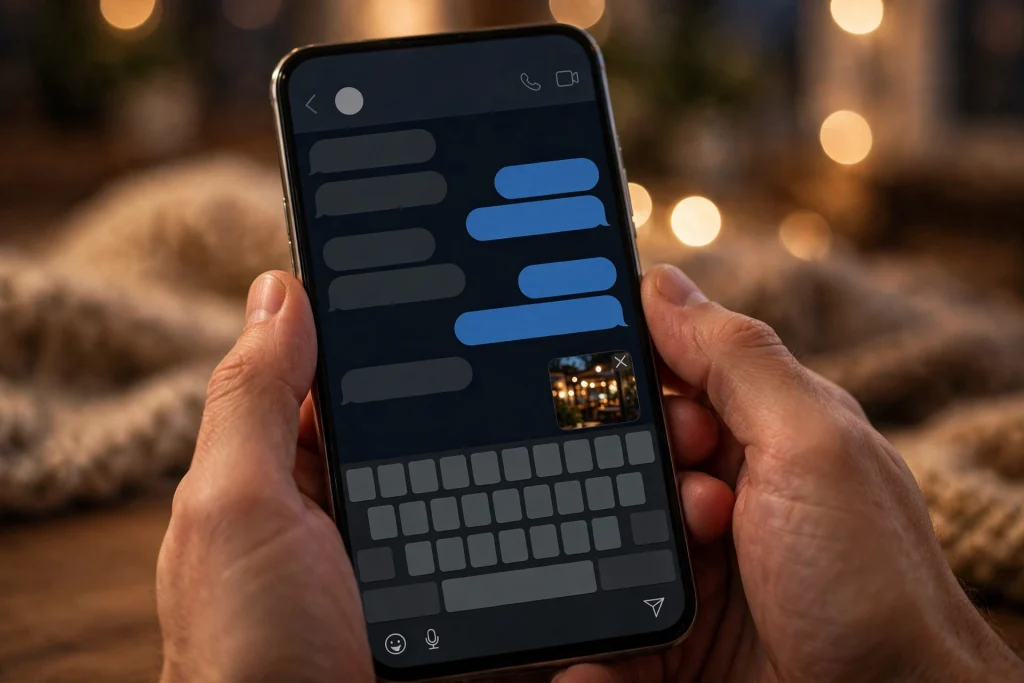
Open a chat on WhatsApp and you may now see something new sitting above the message box: a small preview of the latest photo or video from your phone gallery, with WhatsApp asking if you want to send it. You did not open the gallery, you did not tap the attach button, and you did not ask for a suggestion. WhatsApp put it there on its own. For many people this is a small time-saver. For others, it is a surprise they would rather switch off — especially when the photo it suggests is a screenshot, a bill, a private picture, or something that was never meant for the chat that is open on the screen.
This guide explains exactly what the feature is, how it works, why it sometimes suggests the wrong photo, and how to turn it off. Everything here is based on what has been reported about the rollout so far, and where something is still unconfirmed, this article says so plainly instead of guessing.
What WhatsApp Recent Media Suggestions Actually Are
Recent media suggestions are a new shortcut inside WhatsApp chats. When you open a conversation, WhatsApp can show you the most recent photo or video from your phone’s gallery and offer it as something you might want to share. The idea is simple: people often open a chat right after taking a photo or saving a screenshot, so WhatsApp tries to save them the trip to the gallery.
The feature is reaching some Android and iOS users on the latest versions of WhatsApp, and the rollout is gradual. That means some people will see it this week, others will see it in the coming weeks, and nobody has announced a date by which every user will have it. If you have not seen it yet, that does not mean your phone is broken or your WhatsApp is out of date. It only means the rollout has not reached your account yet. Do not download WhatsApp from any website other than the official app store to chase this feature — unofficial copies of WhatsApp can steal your account, and they will not make a gradual rollout arrive any faster.
It is also worth saying what this feature is not. It is not a new gallery, it is not a change to how photos are stored, and it does not change who can see your photos. Your gallery stays on your phone. WhatsApp is not sharing your gallery with anyone, and nobody in your chats can see the suggestion except you. The suggestion appears only on your own screen, inside your own app.
The Two Ways the Suggestion Can Appear
Reports of the feature describe two different entry points, and which one you see can vary. Both do the same job — they put your latest gallery item one tap away — but they look different on screen.
The first is a small pop-up, sometimes called a toast, that appears above the chat bar at the bottom of the screen. It shows a thumbnail of your latest photo or video and asks whether you want to send it. This pop-up has a close button, so you can dismiss it without doing anything. If you ignore it, it goes away on its own and nothing is sent.
The second is quieter. The camera icon that normally sits in the chat bar is temporarily replaced by a small thumbnail of your latest media. Instead of tapping the camera to take a new photo, you tap the thumbnail to open the suggested one. The camera icon returns to normal afterwards.
You may see one of these, or you may see both at different times. That variation is normal for a feature that is still being tested and rolled out in stages. What matters is not which shape it takes, but what happens when you tap it — and what does not happen.
What Gets Suggested — and Why the Wrong Photo Can Appear
Here is the part that catches people out. WhatsApp suggests the most recently added item in your gallery. That is the whole rule. There is no filtering by type, no filtering by source, and no attempt to guess which photo belongs in the chat you have open.
That means the suggestion can be a photo you just took with your camera, but it can just as easily be a screenshot you took five minutes ago, an image you downloaded from a website, a video someone sent you on another app that saved to your gallery, or a picture of a document, a bill, or a payment receipt. Anything new in the gallery can be the next suggestion. WhatsApp does not sort these into “safe to share” and “keep private”. It simply takes the newest item and offers it.
This is why the feature has a privacy angle. Imagine you are chatting with a colleague and your latest gallery item is a screenshot of a private conversation, a photo of your CNIC, or a picture you took for yourself and never meant to share. Open that chat, and the suggestion is sitting right there above the keyboard. Nothing has been sent — but the photo is one careless tap away from being opened in the editor, and from there it is one more tap from being sent.
The risk is not that WhatsApp sends your photos on its own. It does not. The risk is a slip of the finger at the wrong moment, or a moment of confusion when you are chatting quickly and tap the thumbnail thinking it is the camera button. On a shared phone, or when you hand your phone to someone to show them a message, the suggestion can also put a private photo on the screen in front of another person. That is the practical reason many people will want to know how to switch this off, and this guide covers that in full below.
Tapping the Suggestion Does Not Send Anything Automatically
This is the most important fact in this whole article, and it is the built-in safeguard that makes the feature less dangerous than it first looks. Tapping a media suggestion does NOT send the photo or video. Nothing is sent automatically, and nothing is sent without you seeing it first.
When you tap the suggestion, WhatsApp opens its drawing and media editor — the same screen you see when you attach a photo in the normal way. There you can see the full photo or video, add a caption, draw on it, add a sticker, or crop it. You then decide whether to press send. If you change your mind, you press back, and nothing is sent at all. The chat never knows you opened the editor. The other person sees nothing.
So there are always two steps between the suggestion and a sent message: first you tap the thumbnail, then you press send in the editor. A single accidental tap cannot send a photo to a chat. That is worth remembering, because it means the feature is annoying or risky only if you tap twice without looking — and looking at the photo in the editor is the moment to stop.
Even so, the safeguard does not remove the privacy concern entirely. The thumbnail itself is visible on your screen before you tap anything, and the editor shows the full photo the moment you open it. If someone else is looking at your screen, the photo has already been shown. The safeguard protects you from sending by mistake. It does not protect you from the photo appearing on your own display. That is why the off switch exists, and why some people will prefer to use it.
How to Turn Off Recent Media Suggestions
The feature turns on automatically for the users who receive it. There is no opt-in step and no setup screen that asks your permission. If it has reached your account, it is already on. Switching it off takes less than a minute, and the path has been reported the same way by more than one source.
Follow these steps on your phone:
- Open WhatsApp.
- Tap Settings. On Android, this is in the three-dot menu at the top right. On iPhone, it is the tab at the bottom right.
- Tap Chats.
- Find the option called Recent media suggestions.
- Switch the toggle off.
That is all. Once the toggle is off, the suggestions should stop appearing in your chats — both the pop-up above the chat bar and the thumbnail that replaces the camera icon. You can still share photos in the normal way: tap the attach button, pick from your gallery, or use the camera. Turning this off does not remove any sharing feature. It only stops WhatsApp from offering you a photo before you ask for one.
One honest note: the settings path above is reported by WABetaInfo, Digital Trends and GSMArena, and all three describe it the same way, but WhatsApp has not published its own support page or changelog confirming the feature’s final details yet. Until it does, the path stays reported rather than officially confirmed — but with three independent reports agreeing on the exact same steps, it is the best information available, and the toggle is easy to find and easy to switch back on if you change your mind.
If you cannot find the option in Settings, the feature probably has not reached your account yet, and there is nothing to switch off. Check again after your next WhatsApp update. Do not go looking for the toggle inside the gallery app or your phone’s system settings — it lives inside WhatsApp, under Chats, and nowhere else.
What the Toggle Does — and What It Does Not Do
Switching off Recent media suggestions stops the suggestions. It does not do anything else, and it is important not to expect more from it than it promises.
| What changes | After switching the toggle off |
|---|---|
| Pop-up suggestion above the chat bar | Should stop appearing |
| Camera icon replaced by a media thumbnail | Should return to the normal camera icon |
| Normal photo sharing (attach button, gallery, camera) | Works exactly as before |
| Photos already sent in chats | Nothing changes — sent photos stay sent |
| Your gallery or how photos are saved | Nothing changes |
| WhatsApp updates or other new features | Nothing changes |
The toggle does not delete anything from your gallery, does not unsend anything, and does not change your privacy settings for status, profile photo, or last seen. It is a single switch for a single feature. If you later decide you liked the shortcut, you can go back to the same place and switch it on again.
It is also worth knowing that turning the feature off on one phone does not turn it off on your other devices. If you use WhatsApp on a second phone or a linked device, check the setting there separately. Each device keeps its own settings.
Who Has It Now, and When Will Everyone Get It
The honest answer is that nobody outside WhatsApp knows the full timetable. The feature was reported on 3 November 2026, and it is reaching some Android and iOS users on the latest versions of WhatsApp, with a wider rollout expected over the coming weeks. No date has been announced for when every user will have it, and no date has been announced for Pakistan specifically. WhatsApp rolls features out in waves, and Pakistan is usually part of those waves, but this article will not promise a date that WhatsApp itself has not given.
If you have the feature and a friend does not, or the other way round, that is normal. Rollouts are decided account by account, not phone by phone. Two phones with the same WhatsApp version can show different features. Updating WhatsApp to the latest version from the official app store is the only sensible step — and even that does not guarantee the feature will appear, because the switch is controlled on WhatsApp’s side.
The same applies in reverse. If the feature has not reached you, there is nothing wrong with your phone and nothing to fix. Do not factory reset your phone, do not clear WhatsApp’s data, and do not install modified versions of WhatsApp. None of those will bring a gradual rollout forward, and clearing data can delete your chats if your backup is not up to date.
How This Feature Is Different From Other New WhatsApp Features
WhatsApp has added several new features in recent weeks, and it is easy to mix them up. Here is how this one is different from the others you may have read about on GemTakes.
The message text actions feature is about formatting the text you type — a dotted underline appears under words, and tapping it opens actions for that text. It has nothing to do with photos or your gallery. Recent media suggestions, by contrast, are entirely about photos and videos from your gallery appearing before you type anything.
The photo expansion feature covered in another GemTakes article changes a photo’s size and shape to 9:16 so it fits a Status update better. That is an editing tool you choose to use on a photo you already picked. Media suggestions are different: they choose the photo for you, before you have picked anything.
The new group features — no-expiry pins, sharing recent history after someone joins, Group Status, and the mentions and replies filter — are all about group chats. Media suggestions appear in every chat, one-to-one and group alike, and have nothing to do with group settings.
And the HD photos feature is about the quality of a photo when you send it. Media suggestions are about which photo is offered to you in the first place. You can have HD sending on and media suggestions off, or the other way round — the two settings do not affect each other.
Keeping these apart matters, because the fix for one is not the fix for another. If your problem is a photo appearing above the keyboard, the answer is the Recent media suggestions toggle under Settings, then Chats. If your problem is a photo sending in low quality, that is a different setting entirely.
A Practical Privacy Checklist
If you are not sure whether to turn the feature off, here is a short checklist to help you decide. It is practical, not alarmist — the feature does not share your gallery with anyone, and nothing is sent automatically, so the question is simply whether the shortcut is worth the small risk of a wrong photo appearing on your screen.
- Do you often take screenshots of private chats, bills, or documents? If yes, those screenshots can become the next suggestion, because the rule is simply “most recent item”.
- Do you hand your phone to other people — children, family, shopkeepers, colleagues — while WhatsApp is open? If yes, a suggested thumbnail could show a private photo to someone else.
- Do you chat quickly and tap without looking? If yes, the two-step safeguard (tap, then send) still protects you, but the first tap opens the photo in the editor, and that is one tap closer than you may want.
- Do you share your phone screen during a video call or a meeting? If yes, a pop-up thumbnail above the chat bar could appear on the shared screen.
If you answered yes to any of these, switching the toggle off costs you nothing — you lose a shortcut you never asked for, and normal photo sharing works exactly as before. If you answered no to all of them, and you like the idea of your latest photo being one tap away, you can leave the feature on and simply check the thumbnail before you tap it. Either way, the choice is yours, and it takes less than a minute to change.
One more habit is worth building either way: before you press send in the editor, look at the photo. Not the caption, not the chat name — the photo itself. That one-second check catches almost every wrong-photo mistake, whether the photo came from a suggestion, from the gallery, or from the camera. Most wrong-photo stories start with someone sending quickly and checking afterwards. The editor gives you the moment to check first. Use it.
What to Do If the Suggestion Keeps Appearing After You Switch It Off
A small number of users report that a new feature keeps appearing even after they change a setting. If that happens to you, work through these steps in order, and stop as soon as the suggestions disappear.
First, close WhatsApp fully and reopen it. On Android, swipe it away from the recent apps screen. On iPhone, swipe up from the bottom and swipe the WhatsApp card away. Reopen the app and open a chat. Settings changes sometimes need an app restart to take effect.
Second, go back to Settings, then Chats, and check that the toggle is still off. It is possible to tap the wrong row, or to leave the settings screen before the change is saved. If the toggle is back on, switch it off again and wait a few seconds before leaving the screen.
Third, check for a WhatsApp update in the official app store. If a newer version is available, install it and check the setting again. Features that are still rolling out can behave differently from one version to the next, and the toggle may only work properly on the latest version.
If the suggestions still appear after all three steps, the most likely explanation is that the feature is still being tested on your account and the toggle has not taken effect yet. In that case, wait for the next update and check again. Do not clear WhatsApp’s data or reinstall the app to fix this — both can put your chat history at risk if your backup is not current, and neither is a reliable fix for a rollout that is still in progress.
WABetaInfo, which first reported this feature on 3 November 2026, is tracking its rollout, and its report is the source for the details in this article — the two entry points, the editor safeguard, the lack of filtering, and the settings path to switch it off. You can read the original report on WABetaInfo.
FAQs
What are WhatsApp Recent media suggestions?
They are a new shortcut in WhatsApp chats. When you open a conversation, WhatsApp can show a thumbnail of the most recent photo or video from your phone gallery above the chat bar, or in place of the camera icon, so you can share it faster without opening the gallery. The feature is rolling out gradually to some Android and iOS users, and no date has been announced for when everyone will have it.
Does tapping a media suggestion send the photo automatically?
No. Tapping the suggestion only opens WhatsApp’s media editor, where you can see the photo, add a caption or stickers, and decide whether to send it. If you press back instead, nothing is sent. A photo is only sent when you press send inside the editor, so a single accidental tap cannot share anything.
How do I turn off WhatsApp media suggestions?
Open WhatsApp, go to Settings, then Chats, and switch off the option called Recent media suggestions. This should stop both the pop-up above the chat bar and the thumbnail that replaces the camera icon. Normal photo sharing through the attach button, gallery, and camera keeps working exactly as before.
Why did WhatsApp suggest a screenshot or a private photo?
Because the feature suggests the most recently added item in your gallery, with no filtering by type or source. Screenshots, downloaded images, saved videos, and private photos can all be suggested if they are the newest item. WhatsApp does not sort gallery items into safe and private, so if you take a lot of screenshots, the next suggestion may well be one of them. Turning the feature off is the simplest fix.