
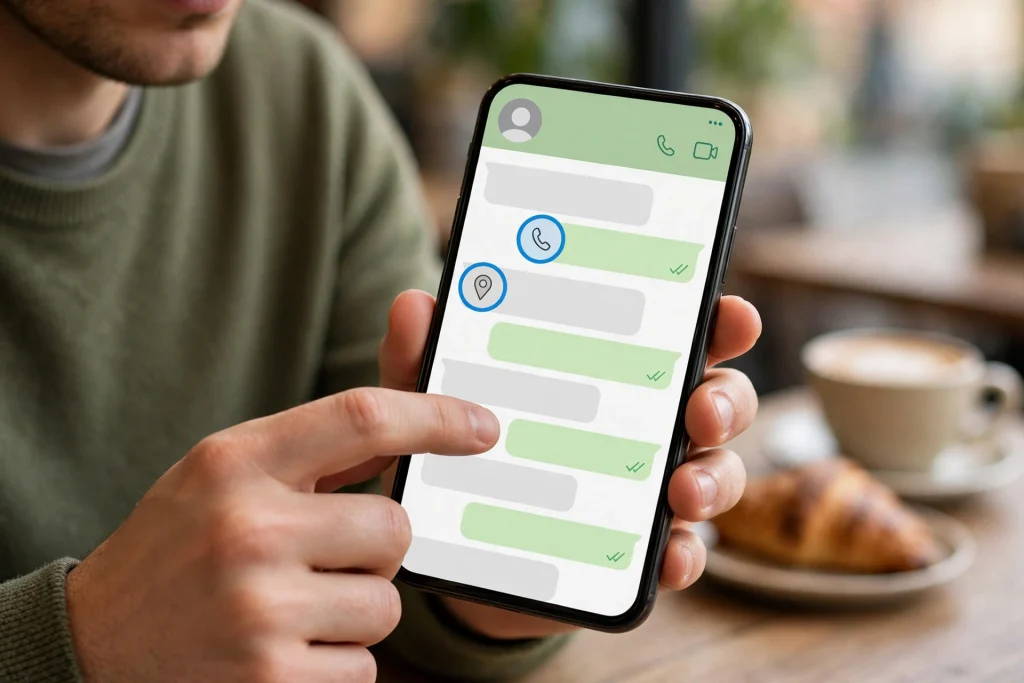
Have you ever received a phone number, a date, or an address on WhatsApp and then wasted time copying it by hand? You long-press the message, try to select only the number, and somehow end up selecting half the message instead. WhatsApp is now making that small daily frustration much easier. The app is rolling out a feature called message text actions, which automatically spots useful details inside a message and turns them into something you can tap.
When a phone number, a date, an address, or an email address appears in a chat, WhatsApp marks it with a dotted underline. That dotted line is your signal: this piece of text can do something. Tap it, and WhatsApp shows you the right action for it, such as calling the number, saving it to your contacts, adding a date to your calendar, or opening an address in maps. You no longer have to copy and paste everything by hand.
This guide explains what WhatsApp message text actions are, how to use them on Android and iPhone, what each type of detected text does, and what to do if the feature has not reached your phone yet.
What Are WhatsApp Message Text Actions?
Message text actions are a small but handy addition to WhatsApp chats. When someone sends you a message that contains a phone number, a date or time, a street address, or an email address, WhatsApp detects that detail and underlines it with dots. The dotted underline is different from a normal link. A normal link in a message is usually shown in a different colour and takes you to a website. A dotted underline means WhatsApp has recognised a piece of information that your phone can act on.
For example, if a friend sends you a message that says “Call me on 0300 1234567 tomorrow at 5 pm, and send the details to [email protected]”, WhatsApp can mark the phone number, the date and time, and the email address separately. Tapping each one gives you a different set of options. You do not need to install anything extra, and you do not need to change any setting to make this work. The feature works inside your normal chats, including one-to-one chats and group chats.
It is worth understanding what this feature is not. It is not a new kind of message, and it is not a chatbot or an assistant inside WhatsApp. It does not rewrite your messages or suggest replies. It simply looks at the text that is already in front of you and makes the useful parts tappable. Think of it as WhatsApp quietly highlighting the bits of a message that you would probably want to act on anyway.
How Detection Works on Your Phone
One question many users ask is whether WhatsApp sends your messages somewhere else to analyse them. According to the reports describing this feature, the answer is no. Detection happens locally on your device using pattern matching. In simple terms, your phone itself recognises the shape of a phone number, a date, an address, or an email address, without sending the message to WhatsApp servers for analysis.
This matters for two reasons. First, it means the feature can work even when your internet connection is slow, because the phone does not need to ask a server what the text means. Second, it keeps your messages private in the same way as before. Your chats stay end-to-end encrypted, and the detection step does not change that. The phone is only reading the text that is already displayed on your screen.
Detection is automatic. You do not need to turn it on, and there is no new button to press. When the feature reaches your account, the dotted underlines simply start appearing under recognised details in your chats. If you tap a dotted underline, WhatsApp shows a small menu with the actions available for that type of detail.
Phone Numbers: Call, Save, or Copy
Phone numbers are probably the most useful thing this feature detects. When a number appears in a message with a dotted underline, tap it and you will see options such as calling the number, adding it to your contacts, or copying it.
Calling directly from the message saves you the step of copying the number, opening your phone app, pasting it, and then dialling. If the number belongs to someone you do not know yet, saving it to your contacts straight from the chat is just as quick. You can also copy the number if you want to paste it somewhere else, such as a note or another app.
For business numbers, tapping may also show business information, where available. This can help you check that you are calling the right shop, office, or service before you dial. As always, be careful with numbers sent by strangers. If a number arrives in a suspicious message, do not call it straight away. Check who sent it first, and remember that scammers often share numbers in fake delivery or prize messages. The dotted underline only means WhatsApp recognised a number. It does not mean the number is safe or genuine.
Dates and Times: Add to Your Calendar
Dates and times are the second type of detail WhatsApp can detect. When a message says something like “meeting on Friday at 3 pm” or “your appointment is on 12 November at 10 am”, the date or time may appear with a dotted underline. Tapping it gives you options such as adding it to your calendar, copying it, or creating a new event inside WhatsApp.
This is genuinely useful for everyday planning. Many people miss appointments simply because a date mentioned in a chat gets buried under newer messages. With text actions, you can turn that date into a calendar event in a few seconds, right from the chat, instead of switching to your calendar app and typing everything yourself.
One practical tip: after you create the event, double-check the date and time in your calendar before you leave the chat. WhatsApp can recognise the date, but it cannot know which year you meant if the message only says “Friday”, or whether “5 pm” was a start time or a deadline. A quick glance at the event you just created avoids confusion later.
Addresses: Copy or Open in Maps
When a message contains a street address, WhatsApp can underline it and let you copy it or open it directly in maps. This is a big time-saver when someone shares a shop location, a home address, or a meeting point. Instead of copying the address, opening your maps app, pasting it, and searching, you can tap once and see the location straight away.
This is especially handy when you are already on your way somewhere. A friend sends an address, you tap it, and your maps app opens with directions ready. If the address is long or complicated, copying it from the same menu is still an option, so you can paste it into a ride-hailing app or share it with someone else.
Keep in mind that maps can only show what it can find. If an address is written informally, such as “near the big market, second street on the left”, maps may not find an exact spot. In that case, copy the full message or ask the sender for a more complete address or a shared location pin. WhatsApp’s own location sharing is still the most reliable option when exact directions matter.
Email Addresses: Open or Copy
Email addresses are the fourth type of detail this feature handles. When an email address appears in a message with a dotted underline, tapping it lets you open it in your mail app or copy it. Opening it in your mail app starts a new email addressed to that person, so you can write and send without typing the address yourself.
This is useful when a contact shares an office email, a support address, or a teacher’s email in a chat. Copying is the safer choice when you want to paste the address into a form, a document, or another app. As with phone numbers, be careful with email addresses from unknown senders. A dotted underline does not prove an email address is genuine, so do not send personal details to an address you have not verified.
How to Use Message Text Actions Step by Step
Using the feature is simple once it reaches your phone. Here is the basic process:
- Open any WhatsApp chat that contains a phone number, date, address, or email address.
- Look for the dotted underline under that detail in the message.
- Tap the dotted underlined text.
- Choose the action you want from the small menu that appears, such as call, save to contacts, add to calendar, copy, or open in maps.
- Complete the action in the app that opens, for example confirming a calendar event or a contact save.
That is all there is to it. There is no separate screen for text actions and no setting to enable. If you tap a dotted underline by accident, just close the menu and nothing changes. The feature only acts when you choose an option.
What to Do If You Do Not See Dotted Underlines Yet
This feature is rolling out gradually. It is available to some users on the latest versions of WhatsApp for Android and iOS, but it has not reached everyone at the same time. There is no published account-by-account schedule, and there is no Pakistan-specific date for the rollout. So if your friend already has dotted underlines and you do not, that is normal. A missing dotted underline does not mean your phone is broken.
Here is what you can do:
- Update WhatsApp from the Google Play Store on Android or the App Store on iPhone. The feature is tied to newer versions, so an old version may not show it.
- After updating, close WhatsApp fully and open it again, then check a chat that contains a clear phone number or date.
- Make sure the detail in the message is written clearly. A number with missing digits or a date written in a very unusual way may not be recognised.
- Wait a few days and check again. Gradual rollouts often reach more users over days and weeks.
Some actions in this feature are not entirely new. For example, tapping a phone number to call it was possible before in some cases. What is new is that WhatsApp is now surfacing these actions more easily and consistently, with the dotted underline making it obvious that an action is available. So even if you have seen a similar option before, the dotted underline system is the new part.
Tips to Get the Most Out of Text Actions
A few small habits will help you use this feature well. First, use it straight away when a useful detail arrives. If someone sends an appointment date, add it to your calendar while you are still in the chat. Waiting until later is how dates get forgotten.
Second, save numbers to your contacts as soon as you get them, and add a name you will recognise. A saved number with no name is almost as useless as an unsaved one when you need to call back weeks later.
Third, when you share your own number, date, or address with someone, write it clearly and completely. Use digits for phone numbers, include the full date, and write addresses in full. Clear formatting helps the other person’s phone recognise the detail too.
Fourth, stay alert about scams. Dotted underlines appear on any recognised detail, including details in messages from strangers. Never call a number, open a link, or send money just because WhatsApp underlined something. The underline is a convenience feature, not a safety check.
Text Actions at a Glance
The table below summarises what each type of detected text does when you tap it.
| Detected item | What happens when you tap it |
|---|---|
| Phone number | Call the number, add it to contacts, copy it, or view business info where available |
| Date or time | Add it to your calendar, create a new event, or copy it |
| Address | Copy the address or open it in maps |
| Email address | Open it in your mail app or copy it |
If a message contains more than one detected detail, each one works independently. Tapping the phone number gives you number actions, while tapping the date gives you calendar actions. You can use them one after another without leaving the chat.
Common Questions and Small Problems
Sometimes users worry that the dotted underline changes the message itself. It does not. The underline is only a visual marker on your screen. The message text stays exactly as the sender wrote it, and the other person cannot see whether you tapped anything.
Another common question is whether this works in group chats. Yes, it works in any chat where a message contains a recognised detail, including groups. This is handy in family or work groups where someone shares a number, a date, or an address for everyone.
If a dotted underline appears on something that is not really a number or a date, that is just a detection mistake. Pattern matching is not perfect, and an unusual string of digits or words can sometimes look like a phone number or a date to the phone. In that case, simply ignore the underline. Nothing happens unless you tap it and choose an action.
If tapping an address opens the wrong place in maps, check the full address in the message. A partial address, such as only a street name with no city, can point maps to the wrong town. Asking the sender for the complete address, or for a shared location, solves this quickly.
Why This Small Feature Matters
Message text actions may look like a tiny change, but they remove a surprising amount of daily friction. Copying numbers by hand, retyping dates into a calendar, and pasting addresses into maps are all small tasks, yet they add up across dozens of chats every week. Each one is also a chance to make a mistake, such as dialling a wrong digit or saving the wrong date.
By making useful details tappable, WhatsApp turns messages into starting points for action. A number becomes a call, a date becomes a calendar event, and an address becomes directions, all without leaving the conversation. For busy users who live inside WhatsApp chats, that is a real quality-of-life improvement.
The feature also shows a sensible approach to privacy. Because detection happens on the device itself, your messages are not sent anywhere extra for analysis. You get the convenience without giving up anything about how your chats are handled.
Final Thoughts
WhatsApp message text actions are a simple, practical upgrade for everyday chats. Look for the dotted underline under phone numbers, dates, addresses, and email addresses, tap it, and choose the action you need. Update WhatsApp to the latest version, and if the feature has not reached you yet, give it some time. It is rolling out gradually, and a missing dotted underline does not mean your phone is broken.
The next time a friend sends you a number, a meeting date, or a shop address, try tapping the dotted underline instead of copying the text by hand. You will probably find it becomes one of those small features you use every day without even thinking about it.
The rollout of this feature was first reported by WABetaInfo, which noted that WhatsApp is bringing message text actions to Android and iOS users, with detection happening on the device itself.
FAQs
What are WhatsApp message text actions?
Message text actions are a WhatsApp feature that automatically detects phone numbers, dates and times, addresses, and email addresses inside messages and marks them with a dotted underline. Tapping the underlined text shows actions such as calling, saving to contacts, adding to your calendar, copying, or opening in maps.
Do I need to turn on message text actions in settings?
No. There is no setting to enable. The feature works automatically once it reaches your account on a recent version of WhatsApp. Just update WhatsApp from the Play Store or App Store and look for dotted underlines in your chats.
Why do I not see dotted underlines on my phone yet?
The feature is rolling out gradually to users on the latest versions of WhatsApp, and there is no published schedule for when every account gets it. A missing dotted underline does not mean your phone is broken. Update WhatsApp, restart the app, and check again after a few days.
Does WhatsApp send my messages to a server to detect these details?
No. Detection happens locally on your device using pattern matching, not by sending messages to WhatsApp servers for analysis. Your chats remain end-to-end encrypted, and the dotted underline does not change the message text itself.