
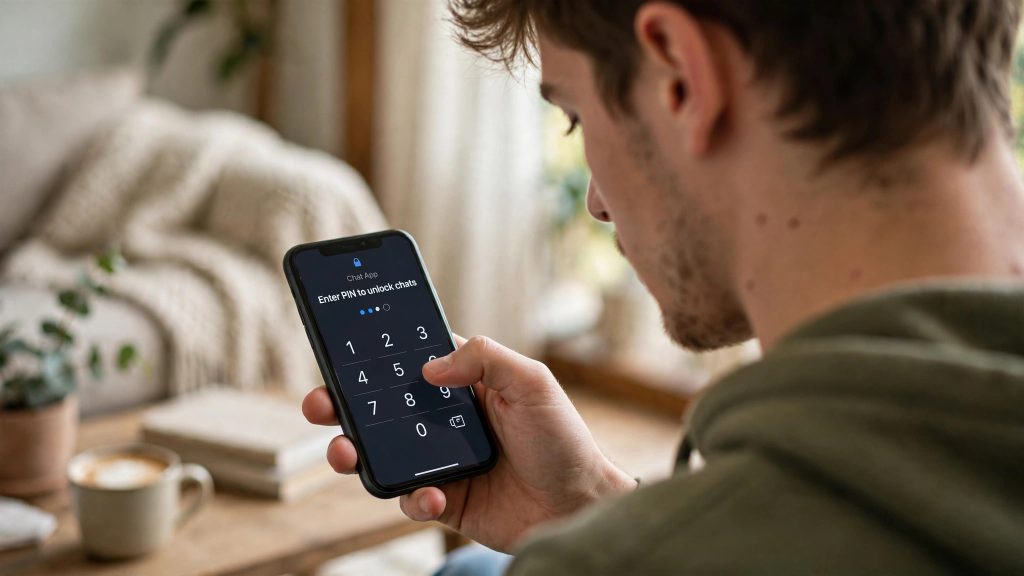
In many Pakistani homes, one phone or one office laptop is shared by several people. If you use ChatGPT on a shared device, anyone can open the app and scroll through your conversation history — including chats about health questions, job applications, salary negotiations or personal problems you would rather keep private.
On 20 October 2026, OpenAI announced a simple fix: Locked Chats. You can now move any eligible chat behind a 4-digit PIN, or behind Face ID / Touch ID on supported phones. The locked chat disappears from your normal history and can only be opened after you unlock it.
In this guide, you will learn how to lock a chat step by step, where locked chats live, how unlocking works, and — very important — the one warning about forgotten PINs that you must understand before you lock anything.
What Are Locked Chats?
Locked Chats is a privacy feature in ChatGPT. When you lock a chat, it is moved out of your regular conversation list and stored in a separate section called Locked chats, inside the Projects area of ChatGPT.
A locked chat:
- Does not appear in your normal chat history.
- Does not show in your pinned chats.
- Does not appear in standard search results inside ChatGPT.
- Can only be opened after you enter your account PIN, or use Face ID, Touch ID or your device unlock on a supported phone.
Think of it as a small locked drawer inside ChatGPT. Anyone using your phone or computer sees your ordinary chats as usual, but the locked ones are simply not visible at all — they are not just hidden behind a label.
Which Chats Can (and Cannot) Be Locked?
Most normal chats can be locked, but there are exceptions. According to OpenAI, the following cannot be locked:
| Chat type | Can it be locked? |
|---|---|
| Normal one-to-one chats | Yes |
| Temporary Chats | No |
| Archived chats | No |
| Group chats | No |
| Chats opened from a shared link | No |
| Chats with scheduled tasks | No |
| Chats with meeting recordings | No |
| Codex and local Work conversations | No |
How to Lock a Chat: Step by Step
The process takes less than a minute:
- Open ChatGPT (app or website) and open the chat you want to hide.
- Open the chat’s three-dot menu (the ⋯ options menu for that conversation).
- Tap or click “Lock chat”.
- If you have not set up a PIN yet, you will be asked to create a 4-digit account PIN. Choose a number you will definitely remember.
- If you already have a PIN, simply enter it to confirm.
- The chat immediately moves out of your history into the locked section.
On phones that support it, you can also use Face ID, Touch ID or your normal device unlock instead of typing the PIN every time.
Where Do Locked Chats Go — and How Do You Open Them?
Locked chats live in Projects → Locked chats. To open one:
- Go to the Projects section in ChatGPT.
- Open Locked chats.
- Enter your 4-digit PIN (or use Face ID / Touch ID / device unlock).
- Open the chat and continue your conversation as normal.
How long the chat stays open depends on where you are using ChatGPT:
- Web and desktop: your access lasts for that tab or window. The chat locks again if you refresh the page, close it, or leave it inactive.
- iOS and Android apps: access ends after about one minute in the background. You can also tap “Lock now” to lock it instantly when you hand your phone to someone.
⚠️ Warning: Forget Your PIN and You Lose Everything Locked
Please read this section carefully before locking your first chat, because this is the one part of the feature that can genuinely hurt you.
If you forget your PIN and choose to reset it, OpenAI permanently deletes all your locked chats, their files and the locked memory connected to them. This deletion cannot be undone, and OpenAI Support cannot recover the deleted content — not for you, not for anyone.
So follow these rules:
- Pick a PIN you are sure you will remember, but that others cannot easily guess (avoid your birth year or 1234).
- Do not lock your only copy of something critical — for example, a long piece of work stored only inside one chat — until you are confident about the PIN.
- If you still remember your PIN and simply want a different one, that is safe: you can change it any time from Settings → Security and login → Account PIN. Changing a known PIN does not delete anything. Only a reset after forgetting wipes the locked section.
Honest Limits: What Locking Does Not Do
Locking is useful, but it is not magic. Keep these limits in mind:
- It is not extra encryption. Locking a chat does not add end-to-end encryption and does not change how ChatGPT stores or retains your data.
- It does not change training or data settings. Your account’s existing data controls apply as before.
- Locked chats have their own separate memory. A locked chat uses a separate memory that is only shared inside the locked section — details from your locked chats are kept apart from your normal conversations.
- Old share links still work. If you shared a link to a chat before locking it, locking does not cancel that link. Anyone who already has the link can still open it. If a chat is sensitive, treat the link — not the lock — as the real risk.
In short: the lock protects you from people who can physically use your device. It is a privacy screen, not a vault.
Who Can Use Locked Chats, and Where?
The feature is available on Free, Go, Plus, Pro, Business, Enterprise and Edu plans — so yes, free users in Pakistan get it too. The only exception mentioned by OpenAI is ChatGPT for Healthcare, which does not include it.
It is rolling out gradually across the web, iOS, Android and the desktop apps. OpenAI announced it on 20 October 2026, so if you do not see the “Lock chat” option yet, your account simply has not received it yet — check again after a few days and keep your app updated. The exact position of the option can also differ slightly between platforms and app versions.
For Pakistani users on shared family phones, shared office computers or a laptop passed between siblings, this is one of the most practical ChatGPT updates in a long time — and it costs nothing.
FAQs
Q: Is ChatGPT Locked Chats free, or do I need a paid plan?
It is available on the Free plan as well. OpenAI has made Locked Chats available on Free, Go, Plus, Pro, Business, Enterprise and Edu plans. The only version without it is ChatGPT for Healthcare. Because the rollout is gradual, some accounts will see the option a little later than others.
Q: What happens if I forget my ChatGPT PIN?
This is the serious part: if you reset a forgotten PIN, all your locked chats, their files and the locked memory are permanently deleted, and OpenAI Support cannot recover them. If you still remember your PIN, you can change it safely from Settings → Security and login → Account PIN without losing anything.
Q: Where do my locked chats go after I lock them?
They move to Projects → Locked chats. They disappear from your normal history, pinned chats and standard search results. To open them again, go to the locked section and enter your PIN, or use Face ID / Touch ID on a supported phone.
Q: Does locking a chat make it end-to-end encrypted or stop a shared link from working?
No to both. Locking does not add end-to-end encryption and does not change your data or retention settings. It also does not cancel a share link you created earlier — anyone holding that old link can still open the chat, so be careful about which chats you share in the first place.
Sources
- https://www.itechpost.com/articles/237612/20261021/chatgpt-introduces-locked-chats-feature-pin-protection-major-privacy-update.htm
- https://pondero.ai/news/2026-10-21-chatgpt-locked-chats/