
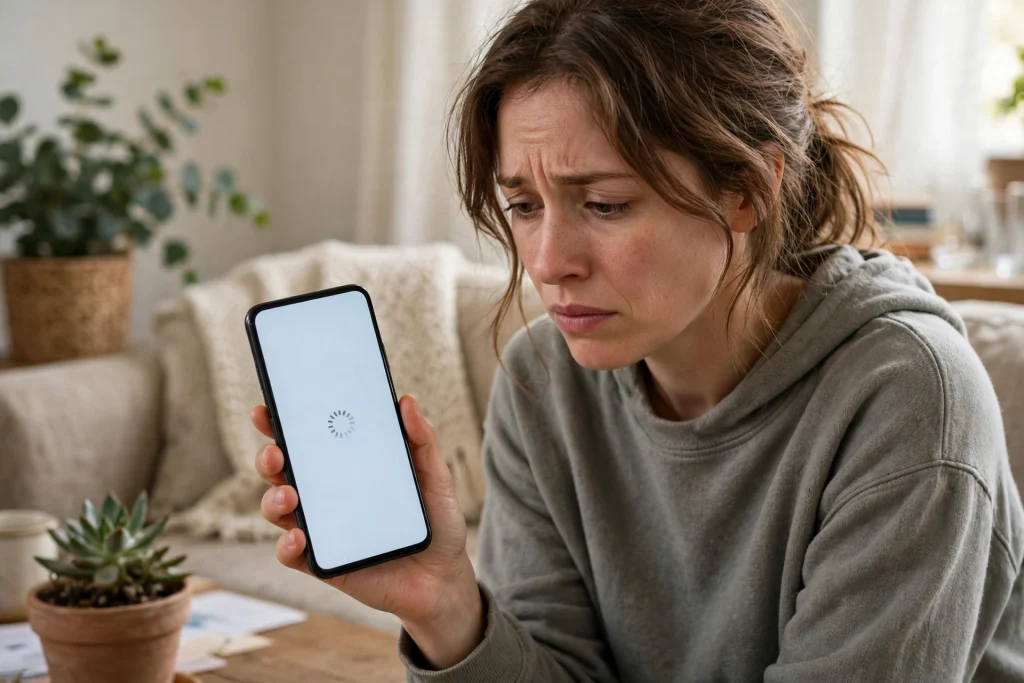
You updated your Samsung Galaxy phone to One UI 9, and now the phone will not finish setting up. It freezes on the welcome screen, or it shows a full-screen error saying a webpage is unavailable. Your phone is not dead, and your data is probably still safe. This is a known bug in the One UI 9 build, and there are workarounds that have helped many affected users get past it. This guide explains what went wrong, what to try first, and — just as importantly — what not to do in a panic.
One UI 9 is Samsung’s version of Android 17. It started rolling out to the Galaxy S26 series in September 2026, and it has since reached more Galaxy models. For most people, the update installs normally. But for some users, something goes wrong right at the end of the process, when the phone tries to finish setup and sign you in to your Samsung account. Instead of reaching the home screen, the phone gets stuck.
What Exactly Happens When the Bug Hits
There are two closely related ways this problem shows up, and it helps to know which one you are facing because the fix steps differ slightly.
The first version is the setup freeze. After the One UI 9 update finishes installing, the phone restarts and stops on the welcome or setup screen. It may show a black screen, or it may simply refuse to move forward no matter how long you wait. Some users have also reported seeing an “Access Denied” style message instead of the normal setup screens. The phone is on, but you cannot reach your apps or your home screen.
The second version is the webpage error. During setup, the phone tries to load a Samsung account page — the page where you agree to Samsung’s account policies. Instead of loading, it shows a full-screen error along these lines: “The webpage is unavailable https://policies.account.samsung.com/agree … Cannot load webpage … net::ERR_NAME_NOT_RESOLVED.” In plain language, the phone is saying it could not reach that Samsung page over the network. The setup cannot continue until that page loads, so you are stuck on the error screen with no obvious way back.
Most reports so far involve the Galaxy S26 Ultra. The problem has also been reported on the Galaxy S24 and S25 series, including the Ultra models, and on some other Galaxy phones. That does not mean every Galaxy phone is affected. Samsung has not confirmed how widespread the bug is, and it would be wrong to say that all Galaxy phones have this problem. If your phone updated to One UI 9 without any trouble, this bug almost certainly does not apply to you.
Why This Happens: The WebView Problem
Samsung’s own community managers have confirmed the cause, and it is not what most people fear. Your phone is not broken, and the update did not corrupt your phone’s software in the usual sense.
The problem is with a component called WebView. WebView is the built-in part of Android that lets apps show web pages inside themselves, without opening a separate browser. During One UI 9 setup, the phone uses WebView to display Samsung’s account sign-in and policy pages. Samsung’s development team has said the issue occurs when an unstable system WebView is used on certain networks. In other words, on some networks and with some carriers, that built-in web view fails to load Samsung’s page, and setup stops dead.
There is also a second, earlier report worth knowing about. A separate report traced a related freeze to a server-side verification check that Samsung added to block unauthorised firmware leaks. That check may be part of why the phone stalls while it tries to verify something online during setup. Samsung has not fully confirmed that this server-side check is the same root cause as the WebView issue, so treat it as a reported possibility, not a confirmed fact. Either way, the practical point is the same: the freeze is linked to an online check or page that fails to load, not to your photos, apps, or personal data being damaged.
This network angle also explains why reports so far point mainly to South Korea and certain carrier networks for the sign-in version of the bug. It does not mean users elsewhere are immune, but it does mean the bug may behave differently depending on your network. Keep that in mind when you try the fixes below: a step that works on one network may not work on another, and that is normal for this bug.
Do NOT Factory Reset Your Frozen Phone
This is the most important warning in this whole guide, so read it twice before you touch anything else.
Do NOT factory reset a frozen phone in a panic. A factory reset wipes your phone completely — your photos, videos, messages, and app data. Worse, it can wipe the two-factor authentication (2FA) apps you use to sign in to your bank, email, and social media accounts. If you lose those, recovering your accounts can take days or even weeks.
And here is the key point: a factory reset will not fix this bug. The bug is not a corrupted install on your phone. It is a problem with the WebView component in the One UI 9 build and the online page it tries to load. Wiping your phone does not change that. In fact, some of the clearest reports of this bug come from people who factory reset their phones on purpose and then got stuck at setup afterwards, unable to reach the home screen at all. A reset can make your situation worse, not better.
If your phone is frozen on the setup screen, your data is still on the phone. Leave it there. Work through the recovery steps below first. Only consider a reset as an absolute last resort, after you have backed up what you can and after Samsung has released a confirmed fix — and ideally only with help from Samsung support.
The Fix That Works: Safe Mode Plus Airplane Mode
The most reliable workaround reported by the community so far combines two simple tricks: Safe Mode and Airplane Mode. The idea is to get the phone past the failing online check by taking it offline, then restart it normally once you are safely on the home screen.
Here is the method, step by step.
First, boot into Safe Mode. Press and hold the Volume Down button and the Power button together. When the Samsung logo appears on the screen, release the Power button but keep holding Volume Down. If it works, the phone will boot into Safe Mode, and you should see the words “Safe Mode” in a corner of the screen. Safe Mode loads only the essential system apps, which can help you get past a screen that normal mode cannot.
Next, turn on Airplane Mode. In Safe Mode, pull down the quick settings panel and tap the Airplane Mode icon, or go to Settings and turn Airplane Mode on. This cuts off Wi-Fi and mobile data completely. That matters because the failing step is an online check: if the phone cannot reach the network, it cannot get stuck on the page that fails to load, and in many reported cases the setup is able to move past the blocked screen.
Then, restart the phone normally. Hold the Power button, tap Restart, and let the phone boot up as usual. Once you reach the home screen, you can turn Airplane Mode off and reconnect to Wi-Fi or mobile data. Many users who used this sequence report that the phone then behaves normally.
A few honest caveats. This is a workaround, not a guaranteed permanent fix. It has worked for many affected users, but Samsung has not promised it will work for everyone, and your result may depend on exactly where your phone is stuck and which network you are on. If the first attempt does not work, try the sequence once more, and then move on to Samsung’s own advice in the next section rather than repeating the same steps endlessly.
Samsung’s Own Advice: Browser Update, Wi-Fi, and Web Sign-In
Samsung’s community managers have also shared their own troubleshooting steps, and these are worth trying — especially if your phone is at least partly usable, or if you have not yet hit the blocked screen.
The first piece of advice is to update your browser to the latest version. If your phone can still reach the Galaxy Store or the Google Play Store, check for updates to Samsung Internet or Google Chrome. Because WebView and the browser are closely linked on Android, having the latest browser version can help the setup pages load correctly. If you do not have a separate WebView app to update, updating Chrome is the step Samsung points to.
The second piece of advice is to use Wi-Fi, not mobile data, for Samsung account sign-in. Samsung specifically recommends connecting to Wi-Fi before you try signing in to your Samsung account through the phone. The WebView failure has been linked to certain networks, and switching to a stable Wi-Fi connection has helped some users get through sign-in where mobile data failed.
But here is where you need the full picture: some users have reported the exact opposite. A few people told reporters that switching to mobile data got them through when Wi-Fi did not, and other coverage has noted that switching in either direction has worked inconsistently. So treat Samsung’s Wi-Fi advice as the best first try, not as a rule. If Wi-Fi does not work for you, it is reasonable to try mobile data instead, and vice versa. The goal is simply to find a network connection on which that Samsung page loads.
The third piece of advice is to sign in through the website instead. If the phone itself cannot complete Samsung account sign-in during setup, try signing in through a browser on another device at the Samsung account website, samsung.account.com, and accept the latest terms and conditions there. This does not always bypass the blocked setup screen on the phone itself, but it can clear the account-side hurdle so that when the phone does get through, sign-in succeeds rather than failing again.
The table below sums up which fix to try for which situation, so you can pick the right starting point instead of trying everything at random.
| Your situation | Try this first | If that fails, try this |
|---|---|---|
| Frozen on the welcome or setup screen after updating | Safe Mode, then Airplane Mode, then restart normally | Restart again in Safe Mode and check for a software update once on the home screen |
| Full-screen “webpage is unavailable” error during sign-in | Switch to Wi-Fi (or to mobile data if Wi-Fi fails) and retry | Sign in at samsung.account.com on another device, then retry on the phone |
| Phone is usable but Samsung sign-in keeps failing | Update Samsung Internet or Chrome to the latest version | Use Wi-Fi for sign-in, then web sign-in as a backup |
| Home screen works but layout or widgets look wrong | Update Home Up to version 18.0.00.38 in Good Lock | Restart the phone and re-check your DIY layout |
Before You Install One UI 9: How to Avoid the Freeze
If you have not installed One UI 9 yet, or if you have a second Galaxy phone waiting for the update, a little preparation can reduce your chances of hitting this bug.
Turn Airplane Mode on before you tap Install. This is the single most useful preventive tip from the community. The freeze seems tied to an online check during or just after installation, and starting the install while offline appears to help some users skip the failing step. Once the update is installed and you have reached the home screen, turn Airplane Mode back off and reconnect normally.
Before you start, also make sure your phone is backed up. Use Samsung Cloud or Google backup to save your photos, contacts, and app data. A backup does not prevent this bug, but it means that even in the worst case, you are not risking irreplaceable photos or your 2FA apps. And do not start the update when you urgently need your phone. Pick a time when you can afford to spend an hour troubleshooting, just in case.
Finally, if you are in Pakistan, keep your expectations realistic. A Pakistan rollout of a fix has not been individually confirmed, and the reports so far point mainly to South Korea and certain carrier networks for the sign-in variant. That does not mean Pakistani users cannot be affected, but it does mean you should not expect a Pakistan-specific fix date, and you should check for software updates on your own phone rather than waiting for an announcement aimed at your region.
When Will Samsung Fix It for Good?
Samsung has said that a future update will address this issue. The November 2026 security patch is expected to carry the fix, according to reporting from Android Police and SammyGuru — but expected is the key word here. Samsung has not confirmed that the November patch will definitely contain the fix, so do not treat it as a promise. A routine update should not be read as confirmation that the issue is resolved until Samsung says so explicitly.
That caution matters because Samsung has already released other updates since the bug appeared. For example, another Galaxy S26 series update arrived in South Korea on 26 October 2026 with general stability and security improvements, but the available release information does not establish that it fixes the WebView setup failure. Installing security patches is still important — they protect your phone in other ways — but do not mistake a security update for the setup-bug fix.
What should you do while you wait? Keep the workarounds above in mind, avoid a panic factory reset, and check Settings, then Software update, then Download and install every few days. When a real fix arrives, it will come as a normal software update, and installing it promptly is the safest way to close this problem for good. If your phone is completely unusable and none of the steps here help, contact Samsung support or visit a Samsung service centre rather than wiping the phone yourself.
Also Fixed: Home Up 18.0.00.38 for One UI 9 Home Screen Glitches
There is one piece of genuinely good news for One UI 9 users, and it is separate from the setup freeze. Samsung has released Home Up version 18.0.00.38, reported on 29 October 2026, and it fixes two annoying home screen glitches on One UI 9.
Home Up is the Good Lock module that lets you customise your home screen in detail, including the DIY Home Screen feature, where you can place icons and widgets almost anywhere, resize them, and even overlap them. The new update fixes an error where the layout on the DIY home screen kept changing on its own, and a second error where the Stack widget — which groups several widgets, like Calendar and Weather, into one stack you can swipe through — was displayed abnormally on the DIY home screen.
If you use Home Up’s DIY Home Screen feature, open the Good Lock app, go to the Plugins tab, find Home Up, and install version 18.0.00.38 if it is offered for your device. The update is rolling out in phases, so it may take a few days to reach you. Before updating, it is a smart idea to take a screenshot of your layout, just in case any icons or widgets need manual repositioning afterwards. Note that this fix is narrow: it helps DIY Home Screen users, not every Galaxy owner, and it is not the same thing as the setup-freeze fix. Do not confuse the two.
What to Do Right Now: A Quick Checklist
If you are stuck right now, do not scroll back through this whole article. Use this short checklist instead.
One, stay calm and do not factory reset. Your data is still on the phone, and a wipe will not fix a WebView bug. Two, try Safe Mode plus Airplane Mode: boot with Volume Down held at the Samsung logo, turn Airplane Mode on, restart normally, then reconnect. Three, if you are stuck at the webpage error, try switching networks — Wi-Fi first, as Samsung recommends, but mobile data is a fair second try if Wi-Fi fails. Four, update Samsung Internet or Chrome if your phone lets you reach an app store. Five, try signing in at samsung.account.com on another device. Six, if you use Home Up, update it to 18.0.00.38 for the layout and Stack widget fixes. Seven, check for a Samsung software update every few days, and watch for the November 2026 patch, which is expected — but not confirmed — to carry the permanent fix.
One UI 9 brings a lot of useful changes, and this setup bug is frustrating precisely because it strikes at the worst possible moment, right when you are excited about a new update. The good news is that the cause is now understood, the workarounds are simple, and a proper fix is on the way. Follow the steps above, protect your data, and give Samsung’s update a chance to do its job before you consider anything drastic.
This bug was first confirmed in detail by Android Police, which reported Samsung’s confirmation of the WebView cause and the expected fix timeline.
FAQs
Why does my Galaxy phone freeze on the setup screen after the One UI 9 update?
The freeze is linked to the WebView component in the One UI 9 build. During setup, your phone uses WebView to load Samsung’s account sign-in and policy pages. Samsung’s development team has said the problem occurs when an unstable system WebView is used on certain networks, so the page fails to load and setup cannot continue. It is not a sign that your phone is permanently damaged.
Will a factory reset fix the One UI 9 setup freeze?
No, and you should not try it. The bug is not a corrupted install, so wiping the phone does not remove the cause. A factory reset deletes your photos, messages, and 2FA apps, and it can leave you stuck at the same setup screen afterwards. Try Safe Mode plus Airplane Mode and Samsung’s network and browser steps first, and only consider a reset with Samsung support’s help as an absolute last resort.
What is the Safe Mode and Airplane Mode workaround, step by step?
Hold Volume Down and Power together, then keep holding Volume Down when the Samsung logo appears, until the phone boots into Safe Mode. Turn Airplane Mode on to cut off Wi-Fi and mobile data, then restart the phone normally. Once you reach the home screen, turn Airplane Mode off and reconnect. This skips the failing online check in many reported cases, but it is a workaround, not a guaranteed fix for everyone.
When will Samsung release a permanent fix for this bug?
Samsung has said a future update will address it, and the November 2026 security patch is expected to carry the fix, but that has not been confirmed. Do not treat the November patch as a guaranteed fix date, and do not assume that any other recent update has already fixed it. Check Settings, then Software update, regularly, and install the fix promptly when Samsung confirms and releases it. A Pakistan-specific fix date has not been confirmed either, so check your own phone for updates rather than waiting for a regional announcement.