
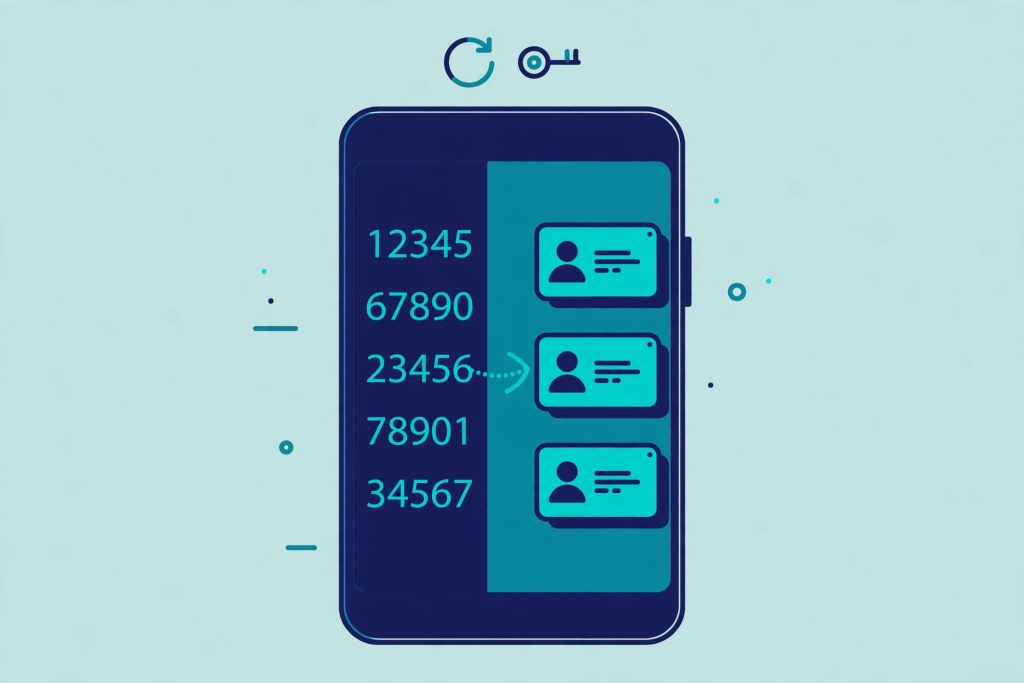
You open WhatsApp and half your chats have turned into plain numbers. No names, no idea who is who, and group chats become a guessing game. The good news is that this is almost never a WhatsApp bug. In most cases the first two fixes in this guide — the permission check and the in-app Refresh — sort it out very quickly, and that is what the “2 minutes” in the title refers to: those first quick checks only. If your problem sits deeper, in sync settings, number formats or a hidden account, the later fixes walk you through those one by one as well.
Follow the fixes in order. Each one takes less time than skipping ahead and guessing, and stopping as soon as your names come back is perfectly fine.
Start With the Permission, Not the App
Before changing anything inside WhatsApp, it helps to understand how the app actually works. WhatsApp does not keep an address book of its own. It has no separate list where it stores the names of your friends and family. Instead, every time you open a chat, WhatsApp reads the name from your phone’s own contacts — the same Contacts app where you save numbers — and matches it to the number in the chat.
That reading can only happen if WhatsApp has the Contacts permission on your phone. Without that permission, WhatsApp can see the numbers, because the chats themselves still work, but it cannot look up who those numbers belong to. The result is exactly what you are seeing: working chats with bare numbers instead of names.
There is also a sneaky version of this problem. Android can automatically take permissions away from apps you have not used for a while, to protect your data. So even if you allowed contacts access months ago, the system may have quietly removed it later, and your names disappeared without you changing anything at all. That is why the permission is always the first thing to check, even if you are sure you never touched it.
Fix 1: Give WhatsApp the Contacts Permission on Android
This is the main fix, and Google documents the path itself. On most Android phones, go to Settings → Apps → WhatsApp → Permissions → Contacts and choose Allow. On some phones you will see “See all apps” after opening Apps — tap that, find WhatsApp in the list, and then continue to Permissions.
If the setting was on “Don’t allow”, changing it back to Allow forces WhatsApp to read your address book again. Close WhatsApp fully and open it once more after changing it, then check your chat list.
On Xiaomi phones running HyperOS, the path is worded a little differently: Settings → Apps → Manage apps → WhatsApp → App permissions, then open Contacts and allow it. The idea is identical — you are looking for WhatsApp’s own permission list, and Contacts inside it.
Do this check inside the phone’s Settings app, not inside WhatsApp. WhatsApp cannot grant itself a permission that the system has removed, which is why searching WhatsApp’s own settings for a contacts switch wastes time.
Fix 2: Use WhatsApp’s Built-In Refresh
Once the permission is allowed, tell WhatsApp to look at your address book again. WhatsApp still has a built-in Refresh option in 2026, and it lives in a place many people never open.
Open WhatsApp, tap the new-chat icon (the message button at the bottom of the Chats tab), then tap ⋮ (More options) at the top and tap Refresh.
That is all it does — and it is important to understand what it does not do. Refresh re-reads your phone’s address book and updates the names WhatsApp shows. It does not create contacts, and it cannot invent a name for a number that was never saved. If a number is not in your Contacts app at all, Refresh will keep showing the number, and that is normal behaviour, not a failed fix.
Give it a few seconds after tapping Refresh, go back to your chat list, and see whether the names have returned. For a large number of users, Fix 1 plus Fix 2 is the whole story.
Fix 3: Reset the WhatsApp Sync Account
If the permission is allowed and Refresh did not help, the next step is WhatsApp’s own documented sync reset. Your phone keeps a small WhatsApp entry in its accounts list that handles contact syncing, and sometimes that entry gets stuck. Removing and rebuilding it clears the jam.
Go to your phone’s Settings → Passwords, passkeys & accounts. On older phones the same section may simply be called Accounts or Users & accounts. Tap WhatsApp, tap Remove account, and confirm Remove account. Then open WhatsApp again, tap the new-chat icon, tap ⋮ → Refresh, and let it rebuild the list.
Do not worry about your data here. Removing this account entry deletes no messages, no contacts and no other data from your phone. It only removes the sync link, which WhatsApp recreates the next time it refreshes.
Some phones show a different-looking variant of the same idea. On Samsung, for example, you may find Settings → Accounts and backup → Manage accounts → WhatsApp, with a Sync account or Sync now option inside. Treat that as the brand’s own version of the same sync step: open the WhatsApp account entry, make sure sync is on, and use Sync now if your phone offers it, instead of removing the account. Different brands label this screen differently, so use whichever of the two your phone actually shows.
While you are in account settings, check one hidden cause that catches many people out. If Google Contacts sync is turned off, the contacts stored in that Google account are removed from the device itself — not just hidden. They vanish from your Contacts app and from WhatsApp at the same time, which makes it look like WhatsApp lost them. If you recently turned sync off, or signed into a different Google account, turn sync back on and wait a little for the contacts to return to the phone before testing WhatsApp again.
Fix 4: Check What Your Contacts App Is Actually Showing
WhatsApp can only show names for contacts your phone itself can see, and your Contacts app has its own display choices. If the Contacts app is set to show only one source — only the SIM, or only one account — contacts saved somewhere else will not appear, and WhatsApp will show their numbers.
Open your Contacts app and set it to show All contacts. On current Samsung phones, this control sits behind your profile picture at the top of the Contacts app: tap your profile picture and choose which source to display, then pick the option that shows everything — device, SIM, Google and Samsung account together. Other brands place a similar source choice in the Contacts app’s settings or filter menu. What matters is the function: every source switched on, not just one.
A related trap is contacts that live only on a SIM card. If your numbers were saved on an old SIM, or you moved a SIM into a new phone, those contacts do not automatically become part of the phone’s address book in the way WhatsApp expects. Import them first: open the Contacts app, go to Manage contacts → Import, and bring the SIM contacts into your phone or Google account. After importing, run the WhatsApp Refresh from Fix 2 again.
Only contacts that actually have a phone number can appear in WhatsApp at all. A record saved with just a name and an email address has nothing for WhatsApp to match, so it will never show a name in a chat.
Fix 5: Fix the Number Format and Merge Duplicates
If only a few contacts still show as numbers after the steps above, the problem is usually how those specific numbers are saved. WhatsApp matches people by their full number, country code included, so save numbers in full international format.
For Pakistan, that means saving the number as +92 3XX XXXXXXX — start with +92 and drop the leading 0 from the local format. A number saved as 03XX… should be edited to +92 3XX…. Make the edit in your Contacts app, not inside WhatsApp, because WhatsApp displays whatever the phone record holds. After correcting the format, run ⋮ → Refresh from the new-chat screen so the chat picks up the name.
Duplicates cause a very similar symptom. If the same person is saved twice — once as 03XX… and once as +92 3XX… — your phone holds two records for one person. WhatsApp may connect the chat to the record that has no proper name, and you see the bare number even though “the contact is saved”. The clean fix is to merge them: open the Contacts app → Fix & manage → Merge duplicates, review the suggestions, and tap Merge or Merge all.
One honest limit: contacts stored in different Google Accounts cannot be merged automatically. If the two copies of a person live under two different Google accounts, delete or re-save one copy manually inside a single account, so the person exists once, in one place, with the number written in the +92 format.
Also check that the number actually sits on the named record. If one record has the person’s name but no number, and a second record has the number but no name, WhatsApp has no single record that connects the two. Put the number on the named contact record, remove the leftover, and refresh.
| Symptom | Likely cause | Fix to try |
|---|---|---|
| All chats show numbers at once | Contacts permission denied or auto-removed | Fix 1: allow Contacts permission |
| Names missing after saving new contacts | WhatsApp has not re-read the address book | Fix 2: new chat → ⋮ → Refresh |
| Names gone after changing phone or account | Stuck sync, or Google Contacts sync is off | Fix 3: reset sync account, check Google sync |
| Only contacts from one place are missing | Contacts app showing one source, or SIM not imported | Fix 4: show All contacts, import SIM |
| One or two people still show as numbers | Wrong format or duplicate records | Fix 5: save as +92…, merge duplicates |
| Names missing in only the second WhatsApp | Clone app has its own permission | Check the clone’s Contacts permission separately |
| Only some names missing on iPhone | iOS 18 Limited Access is on | Set Contacts access to Full Access |
When Numbers Without Names Are Normal
Not every bare number is a problem to fix. If a number was never saved in your contacts, WhatsApp shows the number only — that is correct behaviour. Save the person in your Contacts app, refresh, and the name replaces the number.
You may also see something like “~Name” next to an unknown number, especially in group chats. That name with a tilde in front of it is the other person’s own WhatsApp display name — often called their push name — which WhatsApp shows because that person is not in your address book. The explanation given in WABetaInfo reporting and fix guides is that this is the name the person chose for themselves on WhatsApp; it is not a name you set, and you cannot edit it. Once you save that number under your own name for them, your saved name takes over and the “~Name” disappears.
Using Two WhatsApps, a Clone or WhatsApp Business?
If your main WhatsApp shows names correctly but your second WhatsApp, dual app or WhatsApp Business shows numbers, do not repeat every fix on the main app. A clone is a separate app instance with its own Contacts permission. Android grants permissions app by app, so the main WhatsApp can have Contacts allowed while the clone or Business app still has it denied.
Check it separately: go to Settings → Apps, open the clone or WhatsApp Business app (not your main WhatsApp), then Permissions → Contacts → Allow. Then open that app and refresh its contact list.
There is one more Samsung-specific behaviour to know. Samsung’s Dual Messenger can keep a separate contacts list for the second app by design. If that option was enabled when the second app was set up, the clone works from its own smaller list, and missing names inside the clone are the expected result of that setting, not a fault. Check the Dual Messenger contacts option before assuming something is broken.
iPhone: The Fixes Are Different
On iPhone, start with the same idea — permission first. Go to Settings → WhatsApp → Contacts and make sure it is on. You can also check through Settings → Privacy & Security → Contacts → WhatsApp.
iOS 18 changed this setting into three levels: None, Limited and Full Access. Limited Access explains one of the most confusing versions of this problem: names showing for only some contacts. Under Limited, WhatsApp can read only the contacts you selected, and — this part surprises people — new contacts you save later are not added to that limited set automatically. So a new friend shows as a number while everyone old still shows a name. Set WhatsApp’s contacts access to Full Access to end that pattern.
Next, make sure your contacts are actually on the phone. iCloud Contacts must be on: go to Settings → your name → iCloud → See All → Contacts and turn it on. The same logic applies to other accounts: if the Contacts toggle for an account like iCloud or Gmail is off, that account’s contacts disappear from the phone completely — and therefore from WhatsApp too. Finally, check the Default Account for new contacts, so the people you save from now on go into the account you actually use, not a forgotten one.
One clear difference from Android: iPhone has no in-app Refresh button in WhatsApp. If names are stuck after fixing the permission, toggle the Contacts permission off and back on, close WhatsApp, and reopen it. That off-and-on is the iPhone way of forcing WhatsApp to read the address book again.
WhatsApp Web, Work Profiles and Hidden Accounts
If the names are wrong on WhatsApp Web or Desktop, do not start there. Web and Desktop have no contacts of their own — they simply mirror what your phone’s WhatsApp shows. Fix the phone first using the steps above. If the phone is correct but Web still shows numbers, the session itself is likely stale: unlink that Web or Desktop session and re-link it, which forces a fresh copy of the contact information.
The last hidden cause is where the contact lives. Contacts that exist only inside a work profile, or inside a restricted or managed account, cannot be read by the WhatsApp in your personal profile — the system keeps those areas separate on purpose, and your phone’s own Contacts app may hide those contacts from normal view too. If a missing name belongs to a work contact, save a personal copy of that number in your personal contacts, in the +92 format, and refresh.
If you have worked through everything and the names are still missing, use this last resort before thinking about reinstalling anything. Force stop WhatsApp from Settings → Apps → WhatsApp, then open Storage and tap Clear cache — never Clear data, which is a different and destructive option. Reopen WhatsApp, wait for it to load fully, and check the chat list once more. Clearing the cache removes only temporary files, and paired with everything above it clears out most stuck cases.
For most readers the story ends much earlier than this — at the permission screen or the Refresh button. Work down the list in order, stop when your names come back, and your chats will read like they should again: people, not numbers.
The fixes in this guide follow the contact-sync steps set out by Techzando, whose walkthrough covers the same permission, refresh and cache steps in the same order.
Also read: Two WhatsApp Accounts on One Phone and Change Your WhatsApp Number Without Losing Chats
FAQs
Why does WhatsApp suddenly show numbers instead of names for everyone?
Because WhatsApp reads names from your phone’s contacts and needs the Contacts permission to do it. If that permission is denied — or Android automatically removed it after the app went unused for a while — every chat falls back to showing numbers. Allow it again in Settings → Apps → WhatsApp → Permissions → Contacts, then use the Refresh option from the new-chat screen.
I allowed the permission but names are still missing. What is next?
Reset the sync link. Go to Settings → Passwords, passkeys & accounts, tap WhatsApp, tap Remove account and confirm, then open WhatsApp and tap new chat → ⋮ → Refresh. Removing that entry deletes no messages, contacts or data — it only forces a clean re-sync. On phones that show Sync now instead, use that option inside the WhatsApp account entry.
Why do only some of my contacts show as numbers?
It depends on your phone. On iPhone, iOS 18 Limited Access lets WhatsApp see only selected contacts, and new saves are not added automatically — switch to Full Access. On Android, the usual causes are contacts stored in one hidden source (turn on All contacts and import SIM contacts), Google Contacts sync being off for one account, or a duplicate pair where the chat is attached to the unnamed record — merge duplicates and save numbers as +92….
What does “~Name” mean next to a number in a WhatsApp group?
It is that person’s own WhatsApp display (push) name, shown with a tilde because the number is not saved in your address book — as explained in WABetaInfo reporting and fix guides. You did not set it and cannot change it. Save the number in your contacts under your own name for them, refresh, and your saved name replaces it.