
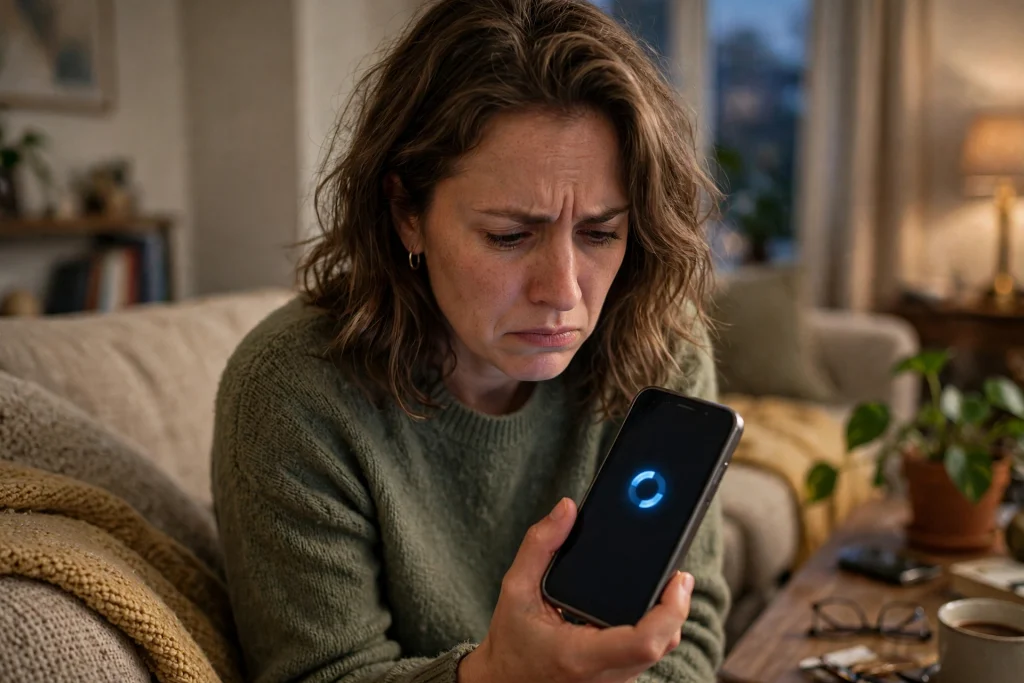
You open WhatsApp to reply to a message, but instead of your chats you see a screen telling you to update your phone first. You cannot tap past it, and you cannot reach your conversations. This is confusing, especially if WhatsApp was working fine yesterday and you have not changed anything.
This new problem is not about your WhatsApp app being old. It is about the software that runs your whole phone, called the operating system. WhatsApp has started blocking logins on some phones that are running an outdated version of Android or iOS. The only official way back in is to update that phone software through your phone’s own settings.
This guide explains, in simple steps, what the blocking screen means, how to check your phone’s version, how to update it on Android and on iPhone, and what to do if your phone no longer receives updates. It also tells you plainly what will not work, so you do not waste time or put your account at risk.
What the blocking screen actually means
When this block hits, WhatsApp stops you before your chat list. Instead of your normal chats, you get a dedicated blocking screen. That screen tells you to update your phone’s operating system through your system settings before you can get access back. It also gives information on how to check which operating system version your phone is running at the moment.
Think of it like this: WhatsApp is not saying your account is banned, and it is not saying your phone number is wrong. It is saying the foundation under the app is too old to trust. Until that foundation is updated, the app will not let you log in.
This matters a lot in Pakistan, where many people keep a phone for five, six, or more years. A phone can still make calls, run YouTube, and open other apps perfectly well, yet still be too old for this new WhatsApp check. That does not mean the phone is broken. It means the company that made the phone has stopped sending it new system updates, or that an available update has simply never been installed.
Why this can happen without a new WhatsApp update
Normally, when WhatsApp changes its rules, you expect an app update from the Play Store or the App Store. This time, that is not how it works. The new measure is being applied server-side, which means it is switched on from WhatsApp’s own servers.
Because of that, you can hit the block without installing any new version of WhatsApp. You might have the latest WhatsApp version already installed and still see the screen. On the other side, reinstalling WhatsApp, clearing its data, or downloading it again will not remove the screen, because the problem is not inside the app file on your phone. The check happens when WhatsApp talks to its servers during login, and the servers decide whether your phone’s operating system is acceptable.
This is also why the block may not appear for everyone at the same time. Server-side rollouts usually reach people in stages. A friend with an old phone might still be able to log in today and see the block next week, or the other way round. If you have not seen it yet, that does not guarantee you will never see it, especially if your phone is running very old system software.
Why WhatsApp is doing this
WhatsApp messages are protected by end-to-end encryption. In simple words, that means only you and the person you are talking to are meant to read the message while it travels between your phones. That protection is real, but it has a limit that many people miss.
Encryption protects the message on its journey. It cannot fully protect a phone that is already compromised. If the operating system itself has known security holes that were never fixed, an attacker may be able to install harmful software on the phone. That harmful software could read things on the screen or capture information before WhatsApp even encrypts it. In that situation, the lock on the message does not help, because the thief is already inside the house.
That is the reasoning behind this move, according to the reports. Old, unpatched operating systems carry known weaknesses that attackers can exploit. By refusing logins on outdated systems, WhatsApp is trying to reduce the number of compromised phones on its network, and to protect not just the owner of that phone but also the contacts who message them.
First, check which version your phone is running
Before you try to fix anything, find out what version your phone is actually on. This takes less than a minute, and it stops you from guessing.
On Android
The exact menu names can differ slightly between Samsung, Xiaomi, OPPO, Vivo, Tecno, Infinix, and other brands, but the path is almost always one of these:
- Open Settings.
- Scroll down and tap About phone.
- Look for Android version. You will see a number there, for example Android 13 or Android 14.
- On some phones, you may need to tap Software information first to see the version number.
If you see a version that is several years old, that is a strong hint that your phone is behind. Write the number down, or take a screenshot, so you can compare it after you update.
On iPhone
The path on iPhone is the same for almost every model:
- Open Settings.
- Tap General.
- Tap About.
- Look for iOS Version. You will see a number there, for example iOS 17 or iOS 18.
If your iPhone is running a version that is several years old, an update is very likely available, or your model may have reached the end of its update life. The next sections cover both cases.
How to update your Android phone
If an update is available, installing it is the official fix. Follow these steps:
- Connect your phone to Wi-Fi. System updates can be large, and mobile data may run out or cost you extra.
- Plug in your charger, or make sure the battery is at least above 50 percent. A phone should not switch off in the middle of a system update.
- Open Settings.
- Tap System, then tap Software update or System update. On Samsung phones, look under Software update. On some other phones, the option sits under About phone and then System update.
- Tap Check for updates or Download and install.
- If an update appears, tap Download, wait for it to finish, then tap Install or Restart now when asked.
- After the phone restarts, open WhatsApp and try to log in again.
Do not panic if the phone restarts more than once during the update. That is normal. Also, do not remove the battery or force-switch off the phone while the update is installing. Let it finish on its own.
If no update appears the first time, try again after a few hours, and restart the phone once before checking again. Sometimes an update shows up only after a restart, or after the phone has been connected to Wi-Fi for a while.
How to update your iPhone
The iPhone process is simpler because Apple controls both the phone and the software:
- Connect your iPhone to Wi-Fi.
- Plug in your charger, or make sure the battery is well charged.
- Open Settings.
- Tap General.
- Tap Software Update.
- If an update is available, tap Download and Install.
- Enter your passcode if asked, agree to the terms, and let the phone restart.
- Once the phone is back on, open WhatsApp and try to log in again.
If the screen says your software is up to date, but WhatsApp is still blocking you, that is an important clue. It may mean your iPhone model can no longer receive newer iOS versions at all. That case is covered below, and it needs a different plan than simply tapping update again.
If the update will not download or install
Sometimes the update exists but will not install. Before you give up, try these common fixes:
- Free up storage. A system update needs free space to download and install. Delete large videos you have already backed up, remove apps you no longer use, and clear old downloads. Then check for the update again.
- Stay on Wi-Fi. Weak or switching connections can interrupt a download. Sit near your router, or try again on a more stable Wi-Fi network.
- Charge the phone. Many phones refuse to install a system update on low battery. Charge to at least 50 percent, or keep the charger connected.
- Restart the phone. A simple restart clears temporary glitches that can block an update check.
- Try again later. Update servers can be busy, especially just after a new version is released. Waiting a few hours and trying again is a reasonable step.
If you have tried all of these and still see no update, do not force the issue by installing files from random websites. That brings us to the most important warning in this guide.
What will not fix the block
When people are locked out of WhatsApp, they naturally search for shortcuts. Most of the shortcuts you will find online for this problem are either useless or dangerous. Here is what not to do:
- Do not install an unofficial WhatsApp APK or a modified version of WhatsApp. These versions are not made by WhatsApp, they can steal your messages and your account, and they can get your number banned. They also do not fix the real problem, which is your phone’s operating system.
- Do not pay anyone who claims they can unlock WhatsApp for you. There is no official paid unlock for this block, and anyone charging for one is almost certainly running a scam.
- Do not factory reset your phone hoping the block will disappear. A factory reset wipes your data, and it does not give your phone a newer operating system. If your chats are not backed up, a reset could delete them permanently.
- Do not keep reinstalling WhatsApp. As explained above, the check is server-side. Reinstalling the same app on the same old operating system will show you the same blocking screen.
There is no official in-app bypass for this block. There is no hidden button, secret setting, or special code inside WhatsApp that lets an unsupported phone skip the check. If a video or a post claims otherwise, treat it as a scam.
If your phone no longer receives updates
This is the hardest situation, and it deserves an honest answer. Some phones simply stop getting updates. The company that made the phone decides how many years of updates each model gets, and once that period ends, no new version will ever appear in Settings, no matter how many times you check.
If your phone is in this group, updating is not an option, because there is nothing to update to. In that case, WhatsApp access on that phone cannot be restored by any official method. That is a frustrating outcome, especially if the phone still works well for everything else, but pretending otherwise would only waste your time and money.
Here is a practical plan for that situation:
| Your situation | What it means | What to do next |
|---|---|---|
| An update is available | Your phone is behind, but still supported | Install the update over Wi-Fi, restart, then open WhatsApp again |
| No update appears, but the phone is a recent model | The update may be delayed or blocked by storage, battery, or connection | Free up space, charge the phone, restart it, and check again later |
| Phone says software is up to date, but WhatsApp still blocks you | Your model has likely reached the end of its update life | No official fix exists on this phone; plan a move to a supported device |
| Phone is very old and the maker no longer supports it | No new operating system version will ever arrive | Back up what you can, then move your WhatsApp account to a supported phone |
If you still have access to WhatsApp on the old phone, back up your chats before you move. On Android, this is usually done through Google Drive, and on iPhone through iCloud. Check that the backup has actually completed before you switch phones, because a half-finished backup will not restore your full chat history.
When you move to a new or newer second-hand phone, install WhatsApp from the official Play Store or App Store, sign in with the same phone number, and restore the backup when asked. Your groups, contacts, and chat history should then come back. Before buying a second-hand phone, check its software version in Settings and make sure it is still receiving updates. A cheap phone that is already at the end of its update life will put you back in the same situation.
One more point for families: if an older relative uses an old phone just for WhatsApp, check their phone’s version now, before the block appears. Installing an available update early is far easier than dealing with a locked account later, especially if that person relies on WhatsApp for family messages and calls.
A quick checklist before you try to log in again
Use this short checklist so you do not miss a simple step:
- Check your Android or iOS version in Settings.
- Connect to Wi-Fi and charge your phone.
- Install any available system update and let the phone restart.
- Open WhatsApp and try to log in again.
- If no update exists, do not install unofficial apps or pay for an unlock.
- If the phone is no longer supported, back up your chats and move to a supported phone.
Most people who see this screen will fix it at step 3. The update is the fix. Everything else in this guide is for the smaller group whose phones genuinely cannot be updated any further.
The reason this block feels unfair is that it punishes people who did nothing wrong. They did not break WhatsApp, and their phone still works. But from a security point of view, an unpatched operating system is a risk to everyone that phone talks to, not just its owner. Keeping your phone’s software up to date is now part of keeping your WhatsApp account working, in the same way that keeping your app updated has always been.
Proof
The server-side login block, the dedicated blocking screen, and the instruction to update the operating system through system settings were reported by Republic World on 6 October 2026, citing reports by GSM Arena.
FAQs
Why is WhatsApp asking me to update my phone instead of the WhatsApp app?
Because the check is about your phone’s operating system, not the WhatsApp app itself. WhatsApp is now blocking logins on some phones running outdated Android or iOS versions. Updating the app alone will not clear the screen, because the block is applied from WhatsApp’s servers when you try to log in.
How do I check my phone’s operating system version?
On Android, go to Settings, then About phone, and look for Android version. On iPhone, go to Settings, then General, then About, and look for iOS Version. The blocking screen also gives information on how to check your current version, so follow its guidance if you are unsure.
Is there a way to skip the blocking screen and keep using WhatsApp on an old phone?
No. There is no official in-app bypass for this block, and the screen cannot be skipped to reach your chats. You must update the phone’s operating system through system settings. Unofficial APKs and modified versions of WhatsApp are not a safe alternative, and they can put your account and your personal data at risk.
What should I do if my phone has no update available?
First, make sure you have checked properly: connect to Wi-Fi, charge the phone, free up storage, restart it, and check for updates again. If the phone still says its software is up to date but WhatsApp keeps blocking you, the model has likely reached the end of its update life. In that case there is no official fix on that phone, so back up your chats if you still can and move your WhatsApp account to a supported phone.