
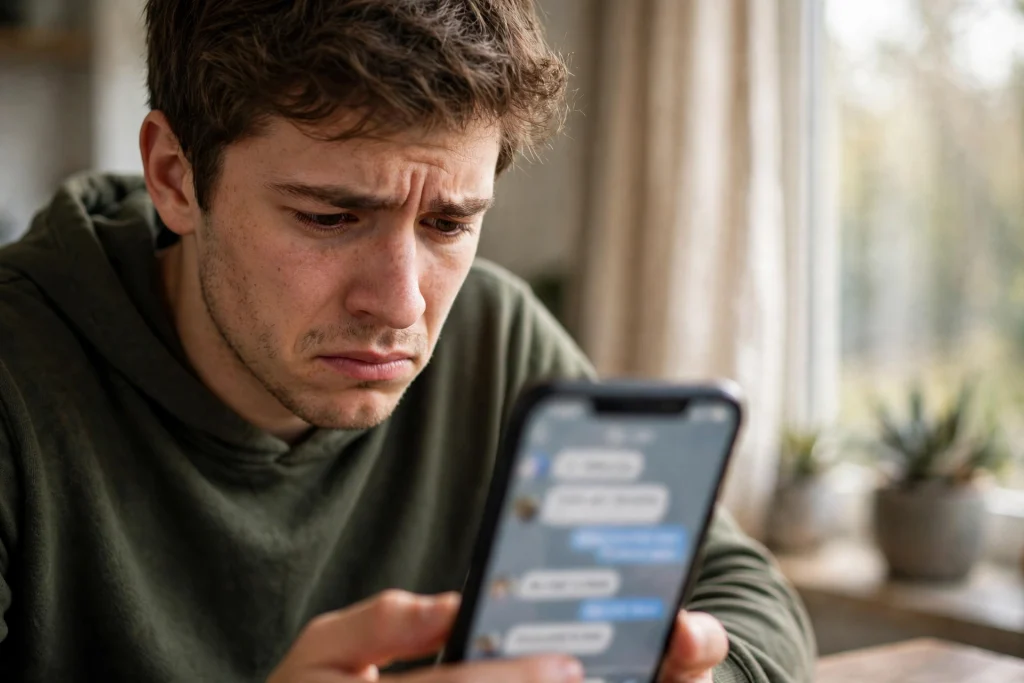
You press send, and nothing happens. No tick appears under your message. You wait, you press send again, and still nothing. The first question that comes to mind is simple: is WhatsApp down, or is something wrong with my phone?
That question matters because the fix is completely different in each case. If WhatsApp itself is having trouble, no setting on your phone will fix it, and the only sensible move is to wait. If the problem is on your side, waiting will not help at all, and a few quick checks can get your messages moving again.
This guide gives you a clear checklist to tell the difference in a few minutes. It also looks back at a real recent example, the WhatsApp outage of 24 October 2026, so you can see what an actual outage looks like and compare it with what you are seeing on your own phone.
What a real WhatsApp outage looks like
On Saturday 24 October 2026, WhatsApp users in India and some other countries reported that they could not send or receive messages. According to the report of that day, the trouble hit group messages first and then spread to individual chats. The most telling symptom was that the tick mark did not appear under sent messages at all. People could still react to messages that had been sent earlier, which showed that the app itself was opening, but new messages were not going through.
WhatsApp Web was affected too. People trying to connect saw an error message saying, “Make sure your computer has an active internet connection”, even when their computer connection was fine. Calls were also hit: a call would stay stuck at “Calling” and never move to “Ringing”.
A WhatsApp spokesperson confirmed at the time that some people were having trouble sending messages and that WhatsApp was working to restore service for everyone as quickly as possible. The same report later carried an update saying WhatsApp was back and users were able to send and receive messages as usual.
That outage is over. It is useful here only as an example, because it shows the pattern of a genuine outage: many people, in different places, facing the same problem at the same time, across the app and WhatsApp Web, with no change on their own phones explaining it.
A report from Pakistan also listed Pakistan among the countries where users reported trouble during that event. That detail matters for readers in Pakistan, because it shows that an outage in another country can still reach you here.
The two-minute test: outage or your phone?
Before you change any setting, run this quick test. It answers the main question faster than anything else.
First, check whether anything else on your phone uses the internet. Open your browser and load any ordinary website. If the website loads fine but WhatsApp messages still do not send, the problem is more likely with WhatsApp itself or with the WhatsApp app on your phone. If nothing loads, the problem is your internet connection, not WhatsApp.
Second, ask someone near you, ideally on a different mobile network, whether their WhatsApp is working. If their messages are also stuck, that points to a wider outage. If theirs works fine, the problem is probably on your side.
Third, check an outage-tracking website such as DownDetector. During the 24 October 2026 event, Gizbot’s India-focused report cited a spike of over 6,000 user reports on downdetector.in. That figure came from that report’s own context, so treat it as a sign of a large spike in reports, not as a count for Pakistan or for the whole world. What matters for you is the pattern on the tracker: a sudden tall spike of reports at the same time strongly suggests an outage, while a flat line suggests the problem is yours alone.
| What you see | What it usually means | What to do first |
|---|---|---|
| No tick on messages, and others on other networks report the same | Likely a WhatsApp outage | Wait and re-check after some time |
| No tick, but other apps also fail to load | Your internet connection is the problem | Check mobile data, Wi-Fi, or signal |
| Messages send to some chats but not one person | Problem with that chat or contact | Check if you are blocked or the number changed |
| WhatsApp Web shows a connection error, but your phone app works | Web or computer connection issue | Re-link or check the computer internet |
| Calls stuck at “Calling”, messages also stuck, others report it too | Likely a wider outage | Wait and check outage trackers |
Step 1: Check whether WhatsApp is down for others
If your quick test points to an outage, confirm it before you do anything drastic.
Open DownDetector or a similar outage tracker and search for WhatsApp. Look at the graph, not just the headline. A sharp rise in reports within a short time is the classic sign of an outage. A small number of scattered reports at different times is normal and does not prove anything.
You can also search social media for recent posts about WhatsApp not working. During a real outage, many people post about it within minutes. Be careful, though: old posts and jokes can mislead you. Look at the time on the posts and make sure they are from right now, not from a previous outage.
Another simple check is WhatsApp Web. If WhatsApp Web on your computer also refuses to connect or shows a connection error while your computer internet works for everything else, that supports the outage theory. A problem on your phone alone would not normally break WhatsApp Web in the same way.
If all signs point to an outage, stop troubleshooting your phone. Do not delete the app, do not clear all your data, and do not factory-reset your phone. None of that will bring a down service back, and you risk losing your chats. Just wait, check again after a while, and keep your messages ready to send once the service returns.
Step 2: Check your own internet connection
If other apps also fail, or if nobody else reports a problem, your connection is the prime suspect. Work through these checks in order.
First, look at your signal. If you are in a basement, a lift, or an area with weak coverage, move near a window or step outside and try again. A single bar of signal, or a signal that keeps dropping, is enough to stall WhatsApp messages.
Second, toggle your connection. Turn on aeroplane mode for about ten seconds, then turn it off. This forces your phone to reconnect to the network and often clears a stuck connection. If you are on Wi-Fi, turn Wi-Fi off and try mobile data, or the other way around. This tells you immediately whether one connection type is the problem.
Third, check whether your mobile data is actually working for WhatsApp. Open your phone settings and make sure mobile data is on and that WhatsApp is allowed to use it. Some phones have a data-saver mode that restricts background data, and some users accidentally turn off mobile data for WhatsApp alone. If you recently changed any data setting, undo it and test again.
Fourth, check your APN settings if mobile data works for nothing at all. APN settings tell your phone how to connect to your network’s internet service, and wrong settings can block all mobile data. This is more common after changing SIM cards, resetting network settings, or inserting a SIM into a new phone. The correct APN details depend on your network, so get them from your operator’s official website or helpline rather than copying random settings from a forwarded message.
Fifth, check your balance and package. On a prepaid connection, an expired package or zero balance can stop mobile data even when the signal looks fine. Confirm that your internet bundle is active before assuming anything else is broken.
Step 3: Check the WhatsApp app itself
If your internet works for other apps but WhatsApp still refuses to send, the app itself needs attention.
Start with the simplest step: close WhatsApp completely and open it again. On Android, remove it from the recent-apps list so it fully restarts. On iPhone, swipe it away from the app switcher. This clears temporary glitches that a simple screen switch does not.
Next, restart your phone. A restart clears stuck background processes and refreshes the network connection at the same time. It is a basic step, but it solves a surprising number of “messages not sending” cases.
Then check for an app update. Open the Play Store or App Store, search for WhatsApp, and see if an update is available. An old version can develop sending problems, especially after a server-side change by WhatsApp. Updating is safe and does not delete your chats.
Also check your phone’s date and time settings. WhatsApp needs the correct date and time to connect securely. If your phone’s clock is far off, for example after a battery drain or a manual change, WhatsApp may fail to connect. Set date and time to automatic and try again.
Storage matters too. If your phone storage is almost full, WhatsApp may struggle to send media files and, in severe cases, to work properly at all. Free up space by deleting old videos, clearing the cache of large apps, or moving photos to another location. Do not delete WhatsApp’s own data unless you have a recent backup, because that can remove your chats.
Finally, check permissions. WhatsApp needs permission to use mobile data, and on some phones, background data permission as well. If you recently denied a permission or turned on a strict battery-saving mode for WhatsApp, the app may be blocked from sending in the background. Allow the needed permissions and exempt WhatsApp from aggressive battery optimisation if your phone offers that option.
Step 4: Check whether the problem is only with one person
Sometimes messages send perfectly to everyone except one contact. That is a different problem, and the outage checklist does not apply.
If only one person’s messages stay stuck, consider these possibilities. The person may have changed their number, in which case your messages are going to an inactive number. They may have deleted WhatsApp or uninstalled it. Or they may have blocked you, in which case your messages will never show more than one tick.
Do not jump to the blocked conclusion from a single stuck message. A person with no internet, a switched-off phone, or a phone out of coverage will also show the same single-tick pattern. Wait and see whether their status, profile photo, or last-seen changes, and whether messages to them start going through later. If the pattern continues for days across all message types, a block or a changed number becomes more likely.
If you suspect a number change, confirm it through another channel, such as a call or a message on another app, before deleting the contact or making assumptions.
What not to do when messages stop sending
Panic moves make things worse. Here are the mistakes to avoid.
Do not delete and reinstall WhatsApp in a hurry. Reinstalling without a recent backup can permanently delete your chat history, and it will not fix an outage or a network problem. Only reinstall as a last step, after you have a fresh backup.
Do not factory-reset your phone. A sending problem in one app is almost never a reason to erase the whole phone. This step destroys data and wastes hours, and it cannot fix a WhatsApp-side outage.
Do not trust forwarded messages claiming a shutdown or a secret fix. During outages, fake news spreads fast, including claims about network shutdowns or cable faults that nobody has confirmed. For the 24 October 2026 outage, no cause was stated in the reports found, so any message claiming a specific cause should be treated with doubt unless it comes from WhatsApp itself or a trusted news outlet.
Do not install “WhatsApp fixer” apps from outside the official store. These apps cannot repair WhatsApp’s servers, and many of them are designed to steal data or show ads. Stick to the official app and your phone’s own settings.
Do not pay anyone who promises to restore your WhatsApp. There is no paid shortcut for an outage or a connection problem, and anyone asking for money for this is running a scam.
When to wait and when to keep fixing
Here is the simple rule. If the outage tracker shows a big spike, other people report the same problem, and WhatsApp Web is also failing, wait. Check again after some time. Your messages will go through once the service is back, and nothing on your phone needs changing.
If the tracker is quiet, other people are fine, and your other apps also struggle, keep fixing your connection. Work through the signal, data, APN, and package checks above.
If your internet works everywhere else and only WhatsApp fails, but nobody else reports an outage, focus on the app: restart, update, check date and time, free storage, and check permissions.
And if the problem is only with one contact, leave the network and the app alone. The answer lies with that contact’s phone, number, or settings, not with yours.
Most “messages not sending” scares end with a simple cause: a weak signal, an expired bundle, a stuck app, or a short outage that passes on its own. The checklist above helps you find which one it is without deleting anything important or believing a rumour.
The details of the October 2026 outage in this guide come from Gizbot, whose report dated Saturday 24 October 2026, 17:19 IST, recorded the symptoms, the spokesperson’s confirmation, and the later update that WhatsApp was back and messages were sending as usual.
Also read: Mobile Data Not Working? APN Settings for Jazz, Zong, Telenor and Ufone and Weak Signals or Dropped Calls? How to Complain So Your Operator and PTA Actually Fix It
FAQs
My WhatsApp messages show no tick at all. Does that mean WhatsApp is down?
Not necessarily. A missing tick means your message has not left your phone yet, which can happen with a weak signal, turned-off mobile data, or a stuck app. It becomes a sign of an outage only when many other people report the same problem at the same time and outage trackers show a sudden spike.
WhatsApp Web says my computer has no internet, but my browser works fine. What does that mean?
During the 24 October 2026 outage, WhatsApp Web showed exactly that error even for users whose computer internet was working. If the app on your phone is also failing and others report trouble too, it points to a WhatsApp-side problem. If only Web fails while the phone app works, check the computer connection or re-link the device.
How long should I wait before trying fixes during a suspected outage?
First confirm the outage with a tracker and by asking someone on another network. If both confirm a wider problem, wait and re-check after a while instead of changing settings. If the tracker is quiet and others are fine, start fixing your own connection right away, because waiting will not help.
Can a message sent during an outage be lost forever?
Messages that never left your phone, shown by no tick, stay in the app and are sent once the connection or service returns. You do not need to retype them. If a message shows one tick, it has reached WhatsApp’s servers and will be delivered when the other person’s phone comes online.