
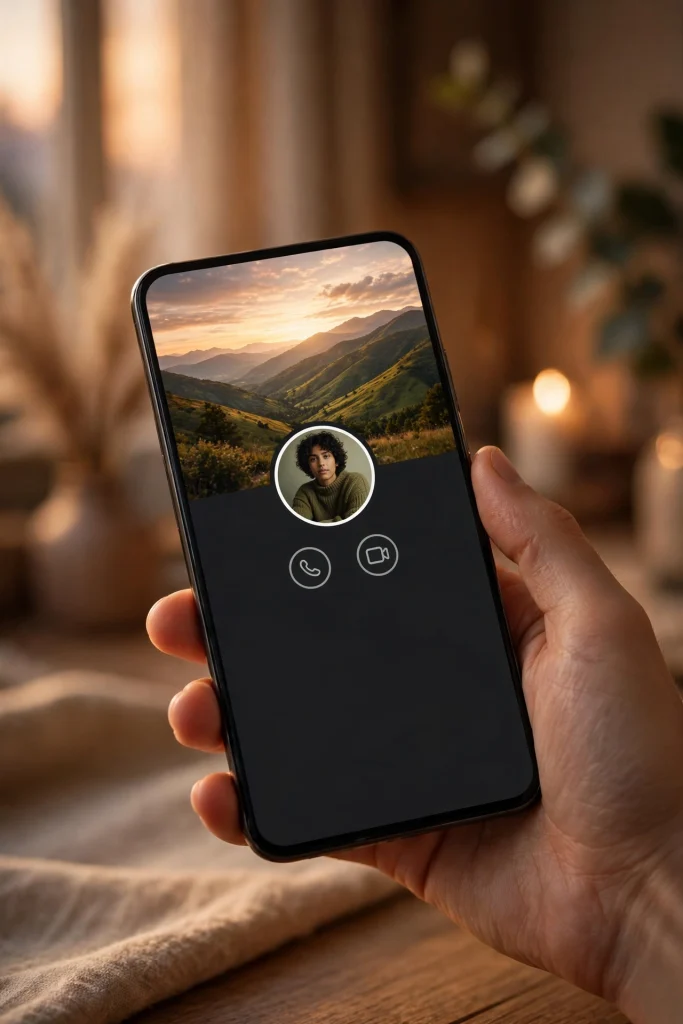
WhatsApp is about to change the way your profile looks. For years, the only photo on a WhatsApp profile has been the small round profile picture. Soon, there will be something bigger above it: a wide landscape banner called a profile cover photo, similar to the cover photo on Facebook or the header image on X.
WhatsApp is now testing this feature with beta users on Android and iPhone. If the rollout goes the way these tests usually go, it should reach everyone in the coming months. A shop owner can show their shop, and a family member can show a favourite place or a photo from a wedding.
But this feature is still in beta, so it is being tested with a small group of users first. Not everyone will see it yet, even if your WhatsApp is fully updated. This article explains what a cover photo is, how to set one, and how to control who can see it, using the beta reports available on 5 November 2026. Where the reports disagree, this article says so plainly.
What Is a WhatsApp Profile Cover Photo?
A WhatsApp profile cover photo is a wide, landscape banner that sits at the top of your profile, above your round profile picture. Think of it like the big photo at the top of a Facebook profile. Your name, your About line, and your profile picture stay where they are, but now there is a large image behind and above them when someone opens your profile.
The important point is that the cover photo does not replace your profile picture. Both stay on your profile at the same time. Your small round photo is still the picture people see in the chat list, in groups, and in call screens. The cover photo only appears when someone actually opens your full profile. If you like your current profile picture, you do not need to change it.
Until now, only WhatsApp Business accounts had cover photos. If you have ever opened the profile of a shop on WhatsApp, you may have seen a wide banner at the top with the shop name or a product photo. What is new is that WhatsApp is now bringing the same idea to personal accounts.
Cover Photo vs Profile Picture: What Is the Difference?
Your profile picture is the small round photo that represents you everywhere on WhatsApp: next to your messages, in group member lists, and on incoming calls. Your cover photo is a wide banner that only shows on your full profile page. It is much larger and much wider than it is tall, so a photo that works as a profile picture may not work as a cover photo at all.
A close-up face photo, for example, will get cropped heavily when it is stretched into a wide banner. A wide photo of a landscape, a city skyline, your shop, or a group of friends will usually look better, because its shape already matches the banner. WhatsApp crops the image you choose into the landscape shape, and you can adjust the crop before you save it. The banner is wide by design, similar to a Facebook or X header, though WhatsApp has not published official dimensions for it.
One more difference is privacy. Your profile picture already has its own privacy setting, and your cover photo gets its own separate setting too. That means you can show your cover photo to everyone while keeping your profile picture limited to your contacts, or the other way round. The two settings work independently, and this article explains the cover photo options in detail below.
When Was the Cover Photo Spotted?
The cover photo feature has been in development for some time. It was first spotted in WhatsApp beta for Android 2.25.32.2 and WhatsApp beta for iOS 26.1.10.71, in early 2026 reports. At that stage, it was only visible in the app's code, and no regular user could turn it on.
The real rollout to testers began at the end of October 2026. WhatsApp started rolling the feature out to some beta testers on Android on 30 October 2026, and then to some beta testers on iPhone on 31 October 2026. The iPhone rollout is linked to WhatsApp beta for iOS 26.43.10.70, available through TestFlight, which is Apple's system for testing apps before they reach the App Store.
Here is where you need to be careful, because the reports do not agree on the exact Android version. WABetaInfo's iOS report refers to the Android announcement as beta 2.26.43.4, while Undercode News and a Medium summary report the Android compatible update as 2.26.43.11. Reports differ on the exact Android build number, so do not worry if the version on your phone matches one number and not the other. The version number matters less than whether WhatsApp has switched the feature on for your account.
| Date | Platform | What happened |
|---|---|---|
| Early 2026 | Android and iOS | Cover photos first spotted in development in Android beta 2.25.32.2 and iOS beta 26.1.10.71; no tester access yet |
| 30 October 2026 | Android | Rollout begins to some beta testers |
| 31 October 2026 | iOS | Rollout begins to some beta testers on WhatsApp beta for iOS 26.43.10.70 (TestFlight) |
| 5 November 2026 | Android and iOS | Still in gradual beta rollout; no official public release date announced |
The rollout is gradual on both platforms, and installing the compatible beta version does not guarantee that you will get the feature. WhatsApp switches new features on for small groups of users at a time, even among beta testers. There is also no official public release date announced yet, so any date you see online that claims to know the launch day is a guess. Before you act on any such claim, open WhatsApp on your own phone and check whether the option is actually there.
How to Set a Cover Photo on Android
If the feature has reached your account, setting a cover photo on Android takes less than a minute. The steps below are based on the beta reports. If you do not see the option at all, it simply means the feature has not reached your account yet.
- Open WhatsApp on your Android phone and make sure it is updated to the latest beta version from the Google Play Store.
- Tap your profile picture or open your own profile from the Settings menu.
- Tap Edit on your profile page.
- Look for the cover photo area at the top of the profile editing screen and tap on it.
- Choose how you want to add the photo: take a new photo with your camera, pick one from your gallery, or generate one with Meta AI.
- If you picked a photo from your gallery, move it around and adjust the crop until the part you want to show sits inside the banner.
- Tap Save, and your cover photo will appear at the top of your profile.
How to Set a Cover Photo on iPhone
The steps on iPhone are almost the same as on Android. The iPhone rollout is tied to WhatsApp beta for iOS 26.43.10.70, distributed through TestFlight. If you are not a TestFlight beta tester, you will not see the feature on your iPhone yet.
- Open WhatsApp on your iPhone and check that you are running the latest beta from TestFlight.
- Go to your profile by tapping Settings and then your name or profile photo at the top.
- Tap Edit on your profile page.
- Tap the cover photo area at the top of the screen.
- Choose your source: take a new photo with the camera, pick one from your photo library, or generate one with Meta AI.
- Adjust the crop by dragging the photo until it looks right in the wide banner, then save.
On iOS, your photo library is organised into albums, so it may be quicker to pick a photo from a specific album. As on Android, the feature is rolling out gradually to some beta testers only. If the option is missing, it means your account has not been switched on yet. Do not download WhatsApp from any website other than the App Store or TestFlight, because unofficial copies can steal your account or your chats.
Who Can See Your Cover Photo? The Privacy Settings
A cover photo is a public-facing part of your profile, so it is worth thinking about who should see it before you set one. WhatsApp has added a dedicated "Cover photo" option under Settings, then Privacy, with four choices. They control only the cover photo, not your profile picture or anything else.
The four options are Everyone, My contacts, My contacts except, and Nobody. Everyone means anyone who opens your profile can see it. My contacts means only people saved in your contacts can see it. My contacts except lets you hide it from specific people, and Nobody means no one can see it.
One thing the beta reports do not settle is which option WhatsApp selects at the start. The reports do not state a default privacy option for the cover photo, so this article does not claim one. When the feature reaches your phone, open Settings, then Privacy, then Cover photo, and check which option is selected before you assume anything. If you want to be safe, set it yourself to the option you are comfortable with, and do not rely on a default that may or may not be what you expect.
| Privacy option | Who can see your cover photo | Best for |
|---|---|---|
| Everyone | Anyone who opens your profile, including strangers | Shop owners, freelancers, and anyone who wants their profile to look open and welcoming |
| My contacts | Only people saved in your contacts | Most personal users who want family and friends to see it, but not strangers |
| My contacts except | Your contacts, except the specific people you exclude | Anyone who wants to hide the cover photo from one or two people, such as a work contact |
| Nobody | No one can see it | Anyone who wants to try the feature privately before showing it to others |
For most personal users in Pakistan, My contacts is the sensible choice. It lets your family and friends enjoy the cover photo while keeping it away from strangers who may open your profile after finding your number in a group. If you run a business, Everyone makes more sense, because a new customer will see your shop or products right away. Remember that anyone who can see your cover photo can screenshot it, so keep home addresses, CNIC numbers and bank details out of it.
How to Change or Remove Your Cover Photo
You are not stuck with the first cover photo you choose. WhatsApp lets you change, reposition, or remove your cover photo at any time, and doing so does not affect your profile picture. Your profile picture stays exactly as it is, no matter how many times you change the cover photo.
To change it, open your profile, tap Edit, tap the cover photo area, and pick a new photo in the same way you picked the first one. To reposition it, drag the photo until the part you want is inside the banner. To remove it, tap the cover photo area and look for the remove option. Removing it does not delete the original photo from your gallery, and it does not change your profile picture.
Tips for a Good Cover Photo
A good cover photo does not need to be professional. It just needs to be clear, honest, and suited to the wide shape of the banner. First, use a wide photo: a picture taken with your phone held sideways will fit far better than a tall photo. A photo of the Margalla Hills, the Badshahi Mosque, a beach in Karachi, or a wheat field in Punjab will usually work well.
What This Means for Pakistani Users
For most people in Pakistan, the cover photo is a fun, personal feature, not something urgent. Your WhatsApp will keep working exactly as before if you never set one. Messages, calls, groups, and Status will all stay the same. The cover photo is an optional extra, and there is no need to rush to set one the moment it appears.
But there are a few groups who will get real value from it. The first is small business owners and online sellers. Many Pakistani shops and home businesses already use WhatsApp as their main shop window, and a cover photo gives them a bigger space to show what they sell. A tailor can show fabric, a baker can show cakes, and a mobile shop can show new models.
There is one caution for Pakistani users that is worth repeating. WhatsApp features often reach Pakistan later than other countries, because rollouts happen in stages by region and by account. If your friend abroad already has the cover photo and you do not, that does not mean your phone is faulty. Do not install modified versions of WhatsApp from random websites: they can get your number banned and put your chats at risk.
Also read: if you like keeping up with new WhatsApp features, see our guide to the four new WhatsApp group features and our guide to the WhatsApp mention and reply filter on Android beta.
Final Thoughts
WhatsApp profile cover photos are a small change, but they are a welcome one. They give your profile more room to breathe, they bring personal accounts up to the same level that business accounts have enjoyed for years, and they let you show a little more of who you are. The rollout is still in beta, the reports differ on the exact Android build number, and there is no official date for the stable release yet, so patience is part of the deal.
For the beta rollout details in this article, including the 30 October 2026 Android rollout, the 31 October 2026 iOS rollout on beta 26.43.10.70, the cover photo setup steps, and the four privacy options, see the report by WABetaInfo. Reports differ on the exact Android build number, so confirm the feature in your own WhatsApp app before acting on any version number you see online.
FAQs
What is a WhatsApp profile cover photo?
A WhatsApp profile cover photo is a wide landscape banner at the top of your profile, above your round profile picture. It does not replace your profile picture. Both stay on your profile, and the cover photo only appears when someone opens your full profile. Until now, only WhatsApp Business accounts had cover photos, and this feature brings them to personal accounts.
How do I set a WhatsApp cover photo on Android or iPhone?
Open your profile, tap Edit, tap the cover photo area at the top, and choose to take a new photo with the camera, pick one from your gallery or photo library, or generate one with Meta AI. Adjust the crop so the important part of the photo sits inside the wide banner, then save. The feature is still rolling out gradually to beta testers, so if you do not see the option, it has not reached your account yet.
Who can see my WhatsApp cover photo?
You control this under Settings, then Privacy, then Cover photo. The four options are Everyone, My contacts, My contacts except, and Nobody. The reports do not state a default option, so open the setting on your own phone and choose the one you are comfortable with. My contacts is the sensible choice for most personal users, while Everyone suits shop owners and sellers who want new customers to see their business.
When will WhatsApp cover photos reach everyone?
There is no official public release date yet. The feature started rolling out to some beta testers on Android on 30 October 2026 and on iPhone on 31 October 2026, and the rollout is gradual. Installing the compatible beta version does not guarantee access. Keep WhatsApp updated from the official store and check your profile editing screen, and do not trust social media posts that claim an exact launch date.