
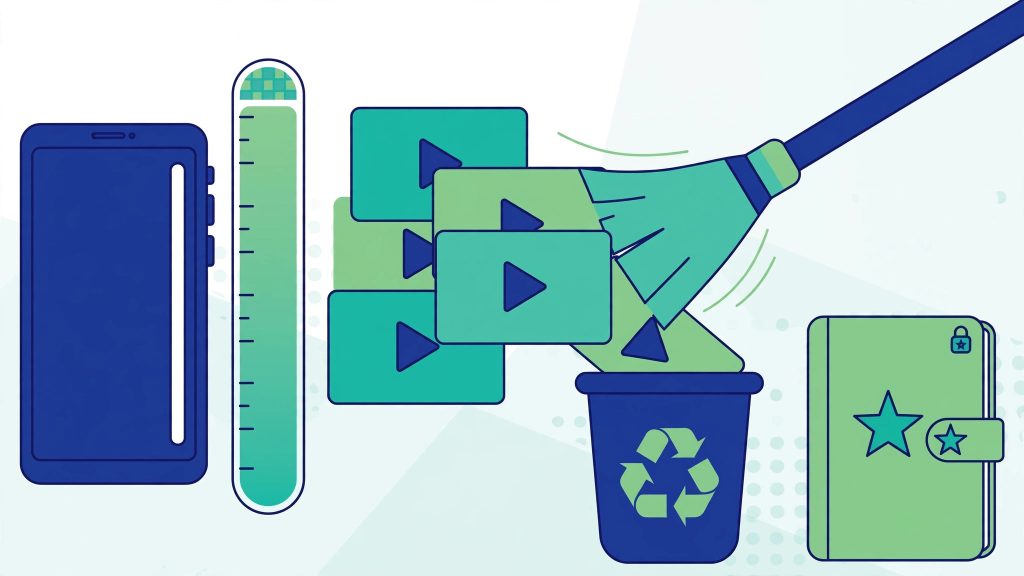
On a budget phone with 64 GB of storage, WhatsApp is usually the biggest tenant: years of family-group videos, forwarded clips and voice notes quietly add up to 10, 15, even 20 GB. Then the warnings start — and WhatsApp itself cautions that if your device storage reaches critically low levels, the app might not work as expected and will prompt you to free up space to keep using it.
The good news is that WhatsApp has a purpose-built cleanup screen that finds your largest files in seconds. Used properly, you can free gigabytes in ten minutes without deleting a single chat. This guide walks through it — including the one warning you must understand before you tap Delete.
Step 1: Find the Space Hogs (Manage Storage)
Android: open WhatsApp, tap the Chats tab > More options (three dots) > Settings > Storage and data > Manage storage.
iPhone: open WhatsApp, tap Settings (or, on newer versions, your profile picture) > Storage and data > Manage storage.
(Menu capitalisation varies slightly between versions — “Storage and data” is the name to look for.)
At the top, the screen shows how much space WhatsApp is using on your phone in total. Below it you will typically see, if your version shows them:
- Larger than 5 MB — every photo, video and file above that size, across all chats. This is where the gold is: a handful of long videos usually outweighs thousands of photos.
- Forwarded many times — the viral clips and memes that arrive again and again.
- A list of your chats (and channels, in current versions), sorted by size, largest first — so the one family group that eats 6 GB names itself immediately.
You can also start from inside any single chat: open it, tap the contact or group name at the top, and tap Manage Storage.
Step 2: Review Before You Delete
Tap any chat, or the “Larger than 5 MB” section, and you can:
- Sort by Newest, Oldest or Largest using the sort icon.
- See each item’s file size before deciding.
- Tap an item to review it, and use More options > Show in chat to see exactly which conversation it came from and when.
- Select items by tapping and holding one, then tapping more — or use Select All.
- Protect what matters: the delete screen offers options along the lines of Delete all except starred / Delete starred items, so starred items can be kept out of a bulk delete.
Text messages are not touched by any of this — you are deleting media items only, and the chat itself stays in place with its text history.
Deleting Here Is Permanent — and Only for You
Read WhatsApp’s own deletion wording carefully before you confirm anything, because it surprises almost everyone:
- Deleting an item in Manage Storage permanently deletes it — you will not be able to redownload it from the chat it was in.
- It deletes the item only for you. Everyone else in the chat keeps their copy and can still see it. This is not “Delete for everyone.”
In practice: if a video matters and exists nowhere else, back it up or send it to yourself elsewhere before deleting. Once it is gone from Manage Storage, it is gone.
One more copies warning from the same guidance: a deleted item is removed from your WhatsApp media, but deleted items may still be saved elsewhere on your device — if your phone holds multiple copies of the same photo or video, all copies must be deleted to free the space, so choose Delete items and any copies / Delete Any Copies when the option is offered, and afterwards check your Gallery or Photos app for a leftover copy before wondering why the space did not come back.
Step 3: Stop It Filling Up Again
A cleanup without prevention lasts about a month. These are the levers, all in Settings > Storage and data:
Media auto-download — the big one. The two platforms organise this differently:
- Android sorts by connection: When using mobile data / When connected on Wi-Fi / When roaming, each with tick boxes for Photos, Audio, Video and Documents. Unticking Video and Documents on mobile data alone stops most surprise downloads.
- iPhone sorts by media type: tap Photos / Audio / Video / Documents individually and choose Never (or Wi-Fi). Setting Video and Documents to Never is the equivalent move.
With auto-download off, media arrives only when you tap it — family photos you actually want, not every forwarded clip.
Gallery saving. On Android, Media visibility (Settings > Chats, or per-chat under the chat’s name) stops newly downloaded media appearing in your phone Gallery. On iPhone the equivalent is Save to Photos (called Save to Camera Roll in some versions), globally or per chat. Note what these do not do: they do not stop the download inside WhatsApp and do not delete anything already saved — they keep WhatsApp media out of your camera roll, nothing more. Turning them off for your busiest groups only is the balanced approach.
Disappearing messages for heavy groups. For groups that generate endless forwards, disappearing messages (per chat: open chat > tap name > Disappearing messages) auto-delete new messages after 24 hours, 7 days or 90 days, and Settings > Privacy > Default message timer applies a duration to all new chats. One exception to know: anyone can long-press a message and choose Keep in Chat — the sender is notified and can veto — and kept messages survive the timer and keep using storage until deleted manually.
The Cache Trap: Safe Button, Dangerous Button
Android users often go hunting in Settings > Apps > WhatsApp > Storage, which offers two very different buttons:
| Action | What it does | Safe? |
|---|---|---|
| Clear cache | Removes temporary files only | Yes — no logout, no chats or media lost; but it frees little |
| Clear storage / Clear data | Resets WhatsApp to a fresh-install state | No — local app data, settings and login wiped; local chats/media at risk without a backup |
Clear cache is a minor troubleshooting step, not a cleanup strategy — do not expect gigabytes from it, and treat Clear data as a last resort only with a fresh backup in hand.
iPhone users: iOS offers no per-app cache button for WhatsApp, and the common advice to Offload App (Settings > General > iPhone Storage > WhatsApp) does not solve this problem — offloading removes only the app itself while keeping its documents and data, which for WhatsApp means keeping exactly the chats and media that are using the space. Delete App removes everything, including local data, so never use it without a current backup.
Your Backup Is Part of the Storage Story
Two facts connect cleanup and backups. First, quotas: since early 2024, Android WhatsApp backups count toward your Google Account storage — the free 15 GB shared across Drive, Gmail and Photos — and if that fills up, backups simply stop. iPhone backups have always counted toward iCloud (5 GB free). Shrinking your media and switching off Include videos in Settings > Chats > Chat backup makes every future backup smaller.
Second, timing: each WhatsApp backup replaces the previous one — there is no archive of older backups. So deleting media today does not shrink the backup already sitting in the cloud until the next backup runs and overwrites it; and restoring an older backup made before a cleanup can bring “deleted” media back. WhatsApp’s help guidance also notes that Google may delete backups that have not been updated in five months, so an old backup is not a permanent archive either. The tidy sequence is: clean up first, then run a fresh backup — which is exactly the routine our backup guide (linked below) walks through.
The Manage Storage paths and deletion wording in this guide follow WhatsApp’s Help Center guidance on managing storage, as reproduced in an October 2026 guide quoting the Help page directly.
Also read: WhatsApp Backup to Google Drive: Complete Guide · Send HD Photos and Videos on WhatsApp
FAQs
Q: If I delete a video in Manage Storage, does it disappear for everyone in the group?
No. Deleting in Manage Storage removes only your copy — permanently, and with no way to redownload it from that chat afterwards. Everyone else in the group keeps the video and can still watch it. It is entirely different from “Delete for everyone,” which is a separate, time-limited option inside a chat and not what the storage screen does.
Q: I deleted lots of media, but my phone still shows WhatsApp using almost the same space. Why?
Three usual causes: leftover copies — the same photo or video may also exist in your Gallery/Photos app or as multiple copies inside WhatsApp, and every copy must be deleted (use “Delete items and any copies” when offered); an old cloud backup that has not yet been overwritten by a new one; and, on iPhone, expecting Offload App to help — it keeps WhatsApp’s documents and data, so it frees only the app’s own size.
Q: Is “Clear cache” safe for WhatsApp? What about “Clear data”?
Clear cache is safe: it removes temporary files only, without logging you out or touching chats and media — though it typically frees only a small amount. Clear storage / Clear data is the dangerous twin: it resets WhatsApp to a fresh install, wiping local data, settings and your login, so local chats and media are lost unless you restore from a backup. For real space recovery, Manage Storage is the correct tool.
Q: Does WhatsApp backup still get free unlimited Google Drive storage?
No. That ended in early 2024: Android WhatsApp backups now count toward your Google Account’s storage — the 15 GB shared with Drive, Gmail and Photos — and backups stop working if the account is full. On iPhone, backups count toward your iCloud storage. Cleaning large videos out of WhatsApp and turning off “Include videos” in the chat backup settings directly reduces how much quota your backup consumes.
Pingback: WhatsApp Voice Transcription 2026: Languages & Urdu Truth
Pingback: WhatsApp Disappearing Messages: 24 Hours, 7 Days or 90 Days Explained