
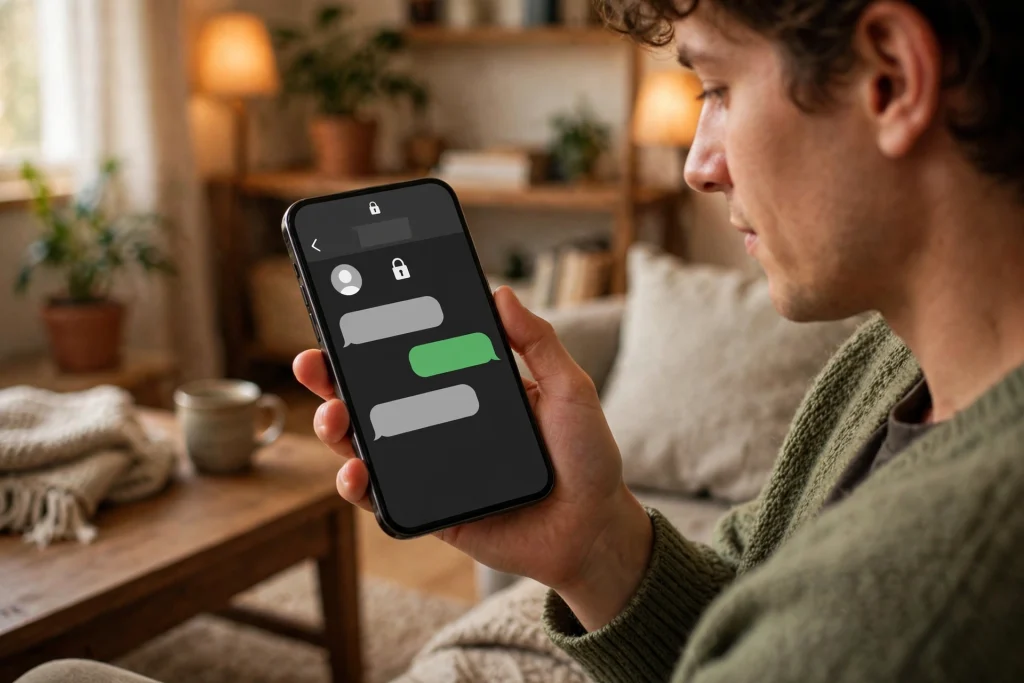
Imagine you share something private with one person on WhatsApp — a family document, a business deal, a personal photo — and later you start wondering where that conversation can end up. Can the other person export the whole chat? Can they open it on a computer? Can the chat be pulled into another app through a linked device? WhatsApp’s new Restricted Chat setting is built for exactly this worry. It puts four limits on a single conversation, so the chat stays on the two people’s main phones and nowhere else.
Before anything else, one honest warning: Restricted Chat is still in beta testing only. As of 23 October 2026, it is limited to some beta testers, and WhatsApp has not announced a date for the public release. There is also no Pakistan-specific rollout date. So if you open WhatsApp today and cannot find the setting, nothing is wrong with your phone — you simply do not have it yet. This guide explains what the setting does, how to turn it on if you do have it, and how to check that it is actually working.
What Is Restricted Chat?
Restricted Chat is an optional, per-chat privacy setting. That means three things right away. First, it is optional: it is off by default and it never switches on for all your chats automatically. Second, it is per-chat: you turn it on for one conversation at a time, from that chat’s own info screen. Third, it currently works only in one-to-one chats. It does not apply to groups or communities.
The setting is the new name and upgrade of an older feature called Advanced Chat Privacy. Reports describe it in different words — some call it a replacement, some an upgrade, some a rename — and one point is still unconfirmed: Advanced Chat Privacy still supports groups while Restricted Chat does not, so whether the old toggle fully disappears on one-to-one chats is not yet settled. For now, the safest way to think about it is that Restricted Chat is the newer, stricter version of that idea, built for private one-to-one conversations.
It was first spotted in 2.26.36.4, later seen in 2.26.39.11, on Android beta, with an iPhone beta build also reported. Do not get confused by the different version numbers floating around online. Beta features appear for different testers on different builds, and having a particular version does not guarantee that you will see the toggle. The iPhone reports rest on a single TestFlight build, and Android reports came first, so identical timing and behaviour on both platforms is not confirmed beyond the four blocks described below.
Almost everything known about this feature so far comes from beta reports, not from an official WhatsApp blog post or Help Center page. That is normal for a feature in testing, but it means every detail here should be read as “reported in beta” rather than “officially confirmed by WhatsApp.”
The Four Blocks
Once you switch Restricted Chat on for a conversation, four restrictions apply to that chat. They apply to both participants, no matter which one of you switched the setting on. A system message appears in the chat telling both people that messages can now only be sent and received on primary devices.
| Block | What happens in the chat |
|---|---|
| Media auto-save stopped | Photos and videos from the chat are not automatically saved to either person’s phone gallery |
| Chat export blocked | Neither person can export the chat |
| Meta AI switched off in the chat | Meta AI features cannot be used inside that conversation |
| Linked devices blocked | The chat cannot be used on linked devices — primary phone only |
Let us look at each one in plain words.
1. Media is not saved automatically. Normally, photos and videos you receive can land in your phone’s gallery on their own. In a restricted chat, that automatic saving stops for both people. Note the word “automatically” — it matters, and we will come back to it below.
2. The chat cannot be exported. Exporting a chat means saving the whole conversation, with or without media, as a file you can send somewhere else. In a restricted chat, that option is closed. This is the block that matters most for people who worry about a full conversation being copied out of WhatsApp in one move.
3. Meta AI cannot be used in the chat. WhatsApp’s built-in assistant features are switched off inside a restricted conversation. You cannot call on the assistant within that chat while the restriction is on.
4. The chat cannot be used on linked devices. This is the one genuinely new restriction compared with Advanced Chat Privacy. A restricted chat does not appear on WhatsApp Web, on the desktop app, on a tablet, or on a secondary phone. It lives on the two participants’ primary phones only. If you use WhatsApp on your computer every day, this is the change you will notice first: that particular conversation simply will not be there.
What Restricted Chat Does Not Do
A privacy setting is only useful if you know its limits, so let us be clear about what Restricted Chat does not promise.
It does not block screenshots. According to one report, screenshot blocking is not part of this setting, and neither is stopping someone from copying text by hand. Restricted Chat limits what the app itself allows — export, linked devices, the assistant, automatic saving — but it cannot stop the other person from taking a screenshot or writing something down. Do not treat it as proof that a conversation can never leave the phone.
It does not stop every kind of media saving. The reports confirm only that automatic saving to the gallery is stopped. Whether manually downloading or saving a single photo is also blocked has not been verified. So do not tell yourself “no photo from this chat can ever be saved.” The confirmed claim is narrower: it will not save on its own.
It does not hide or lock the chat on your phone. Restricted Chat is not the same as locking a chat. The conversation stays in your chat list, visible as normal, and it does not ask for a fingerprint or PIN to open. If you want a chat hidden and locked on your own phone, that is a different feature — see the comparison later in this guide.
It does not change encryption. Your messages and calls in a restricted chat stay protected by end-to-end encryption, exactly as they are in any other chat. Turning the setting on does not add a new layer of encryption, and turning it off does not remove the encryption you already had. Encryption and restriction are two separate things, and this setting only handles the restriction side.
It does not cover groups. If most of your sensitive conversations happen in a group, this setting will not help you yet, because it is one-to-one only at present. There is no “admin-only” version of it, because the whole admin question does not apply to a private chat between two people.
It may not behave identically on old app versions. Beta reports describe the restrictions applying to people in the conversation on the latest version. What happens if the other person is running an old version has not been verified, so do not assume the blocks hold against an outdated app. The practical answer is simple: keep WhatsApp updated on both phones, which is good advice for any privacy feature.
How to Turn It On: Step by Step
These steps apply only if the setting has reached your account. If any step below does not match what you see on your screen, stop — the feature has not reached you yet, and the last section of this guide explains what to do instead.
Step 1: Update WhatsApp. Open the Play Store or App Store and install the latest WhatsApp update available to you. Beta features arrive through updates, and an old version will not show a new toggle.
Step 2: Open the one-to-one chat. Pick the private conversation you want to restrict. Remember, this only works for a chat between two people, not a group.
Step 3: Open the chat info screen. Tap the contact’s name at the top of the chat. This opens the info screen for that conversation, where privacy options for that chat live.
Step 4: Find Restricted Chat. Look for the Restricted Chat option on the info screen and tap it. If it is not there, your account does not have the feature yet — do not look for it in the main Settings menu, because it is a per-chat setting, not a global one.
Step 5: Switch it on. Turn the toggle on and confirm if WhatsApp asks you to. From this point, the four restrictions apply to that conversation.
Step 6: Check for the system message. A message should appear inside the chat telling both participants that messages can now only be sent and received on primary devices. This message is your first confirmation that the setting took effect — and it also tells the other person, so there is no secret restriction happening behind their back. Both people are told, and both are bound by the same limits.
If you change your mind later, return to the same chat info screen and switch the setting back off. Because the setting is per-chat, switching it off for one conversation never affects your other chats.
How to Check It Is Actually Working
Turning a toggle on is one thing. Verifying it is another, and it only takes a minute. Run through these four checks right after you enable the setting.
Check 1: Look for the system message. Scroll inside the chat and confirm the message about primary devices is there. If it is missing, the setting may not have applied — try toggling it again.
Check 2: Open a linked device. If you use WhatsApp Web or the desktop app, open it and look for the conversation. In a restricted chat, it should not be usable there. If the chat still opens normally on your computer, the restriction is not active on that conversation.
Check 3: Try the export option. Open the chat menu and look for the export option. In a restricted chat, exporting should not be available. This is the quickest single check that the setting is doing its job.
Check 4: Send a test photo. Send a photo in the chat and ask the other person whether it appeared in their phone gallery on its own. In a restricted chat, it should not save automatically. Also confirm that the assistant option does not appear inside that chat.
If all four checks behave as described, the restriction is working. If one of them does not, the most likely explanation is that the feature is still rolling out in stages and your account or the other person’s account does not fully have it yet. Wait for a later update rather than assuming the setting is broken.
Restricted Chat vs Chat Lock: Which One Do You Need?
Many people confuse these two features because both sound like “locking a chat.” They solve different problems, and some people will want both.
Chat Lock is about your own phone. It locks a selected chat behind your fingerprint or PIN and hides it from your main chat list, so someone holding your unlocked phone cannot casually open it. It says nothing about what the other person can do with the conversation.
Restricted Chat is about the conversation itself. It does not hide anything on your phone. Instead, it limits what either person can do with the chat: no export, no linked devices, no assistant inside the chat, no automatic media saving. It protects the conversation wherever it exists, not just on your handset.
So the simple rule is: use Chat Lock when your worry is someone picking up your phone. Use Restricted Chat when your worry is the conversation travelling — being exported, opened on a computer, or pulled into another app. For a genuinely sensitive one-to-one conversation, the two features complement each other rather than replacing each other. You can find a full guide to locking chats and a checklist for linked-device security elsewhere on this site.
Why WhatsApp Added This Setting
WhatsApp’s stated reason for the feature is that it helps prevent people in the chat from using unofficial apps or automated tools to reach it. Those tools reach conversations through the linked-device system, which is exactly why blocking linked devices is the headline change here. In other words, the setting is aimed less at ordinary users and more at the back doors: unofficial clients and automated systems that connect to WhatsApp chats from outside the official apps.
That also explains why the setting is per-chat and off by default. Most conversations do not need this level of restriction — people want their chats on their computer, want to export a chat before changing phones, and want media to save to their gallery. Restricted Chat is for the minority of conversations where privacy matters more than convenience, and WhatsApp leaves that choice to you, chat by chat.
If You Cannot Find the Setting
This is the most common situation right now, and it is completely normal. Restricted Chat is still in beta, limited to some testers, and WhatsApp has not announced when it will reach everyone. There is no Pakistan-specific date either, so do not trust any post that claims a release date for Pakistani users.
Here is what you can do while you wait. First, keep WhatsApp updated — beta features arrive through updates, and an outdated app will never show a new toggle. Second, check the chat info screen of a one-to-one chat from time to time, since that is where the option will appear when it reaches you. Third, do not install modified or unofficial versions of WhatsApp to chase the feature early. Unofficial apps are exactly the kind of back door this setting is designed to shut, and they put your account and your chats at risk.
While you wait, the existing tools still cover much of the same ground. Chat Lock protects a chat on your own phone, disappearing messages limit how long messages stay around, and reviewing your linked devices regularly keeps your account tidy. Restricted Chat will be a welcome addition when it arrives, but it is not a reason to stop using the protections you already have.
The key point of this whole guide is a small one: privacy on WhatsApp is now becoming something you set per conversation, not just for the whole app. Restricted Chat is the strictest version of that idea so far — four clear limits, both people bound by them, primary phones only. When it reaches your phone, you will know exactly what to switch on and exactly how to check that it worked.
Beta reports of the feature, including its four restrictions and its beta-only status, were covered in detail by GSMArena in its 4 October 2026 report, which also notes that the setting is rolling out only to some beta users so far and that WhatsApp has not said when it will reach everyone.
Also read: WhatsApp Chat Lock: How to Lock and Hide Your Private Chats and WhatsApp Web and Linked Devices: Security Checklist
FAQs
Is Restricted Chat available for everyone on WhatsApp? No. As of 23 October 2026 it is still in beta testing, limited to some beta testers, and WhatsApp has not announced a public release date or a Pakistan-specific date. If you cannot find the setting, your account simply does not have it yet.
Does Restricted Chat work in groups? No. At present it works only in one-to-one chats. It does not apply to groups or communities, and there is no admin version of it, because the setting is designed for a private conversation between two people.
Does Restricted Chat stop screenshots? No. Screenshot blocking is not part of this setting, according to one report, and neither is stopping someone from copying text manually. What it stops is automatic media saving, chat export, the assistant inside the chat, and use on linked devices. A screenshot remains possible, so do not treat a restricted chat as impossible to copy.
Does turning on Restricted Chat change my chat’s encryption? No. Messages and calls stay protected by end-to-end encryption whether the setting is on or off. Restricted Chat changes what people can do with the conversation, not how strongly it is encrypted.