
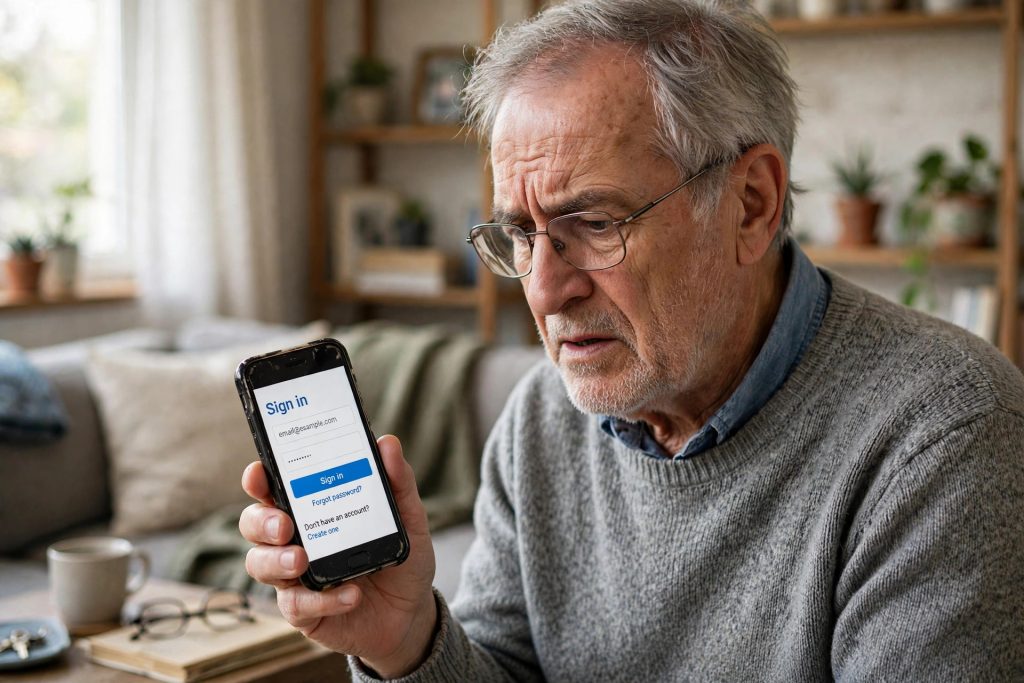
Imagine opening WhatsApp one morning and seeing a blocking screen instead of your chats — no warning beforehand, just a message telling you to update your phone’s software. According to reports, that is now starting to happen to people whose phones run outdated versions of Android or iOS.
Pakistan has millions of older and second-hand phones in daily use — often in the hands of parents and grandparents, for whom WhatsApp is the family’s main telephone. This guide explains what has been reported, how to check your phone’s software version in under a minute, and exactly what to do if your phone can no longer be updated.
What Was Reported on 6 October 2026
On 6 October 2026, Republic World reported — citing GSMArena — that WhatsApp is rolling out a server-side security measure that can block login on devices running outdated iOS and Android versions.
Two details matter here:
- It is server-side. The block is applied by WhatsApp’s servers, not by the app on your phone. That means it can appear without any app update — updating WhatsApp alone will not prevent it.
- Affected users see a dedicated blocking screen instead of their chats. The screen tells them to update the phone’s operating system through system settings, and shows how to check the phone’s current OS version.
In other words, the fix WhatsApp is pointing people to is not “update the app” — it is “update the phone.”
Why Is WhatsApp Doing This?
The stated reason is security. Very old operating system versions no longer receive security patches from Google or Apple. Those unpatched weaknesses can be exploited to install malware.
WhatsApp’s chats are end-to-end encrypted, but encryption protects messages while they travel between phones. It cannot protect a phone whose operating system itself has been compromised by malware — at that point, the attacker is effectively inside the device, past the encryption. Blocking logins from outdated systems is how WhatsApp refuses to run on devices it can no longer keep safe.
The Honest Unknown: Nobody Has Published the Exact Cut-Off
Before the steps, one thing must be said clearly, because many websites will not say it: WhatsApp has NOT officially disclosed the exact OS versions that will be blocked.
There is no confirmed public statement saying “below Android X or iOS Y, you are blocked.” Any website or video quoting a specific cut-off version as official fact is guessing. What is known is that the measure is being rolled out, that it targets outdated versions, and that the blocking screen directs users to update their OS.
That is exactly why the sensible move is not to hunt for a rumoured version number — it is to check your own phone, install any update waiting for it, and do it before a blocking screen forces the issue.
Step 1: Check Your Phone’s OS Version
On Android:
- Open Settings.
- Tap About phone (on some phones this sits inside a “System” section).
- Look for Android version. That number is your OS version.
On iPhone:
- Open Settings.
- Tap General, then About.
- Look for iOS Version.
Write the number down or take a screenshot — if a blocking screen ever appears, you will already know your answer.
Step 2: Install Any Pending System Update
Many phones have an update downloaded or waiting that was simply never installed. Check now:
On Android: open Settings and look for Software update or System update (the name varies by brand). If an update is offered, connect to Wi-Fi, plug the phone in, and install it.
On iPhone: open Settings → General → Software Update. If an update is offered, install it the same way — on Wi-Fi, with the phone charging.
Restart the phone afterwards — the new version only takes effect once it has fully restarted.
Do the Same Check on Your Parents’ Phones
The phones most exposed to this block are rarely your own — they are the older handsets used by parents and grandparents, exactly the people for whom WhatsApp is the family’s main line and a blocking screen would be genuinely distressing. On your next visit, run this five-minute routine on their phones:
- Check the OS version (Step 1 above) and note it down.
- Install any waiting system update (Step 2) — on older phones, updates often sit downloaded and uninstalled for months.
- Turn on automatic updates in the same settings screen, if the phone offers it, so the next update does not wait for you.
- Run a WhatsApp chat backup while you are there (Settings → Chats → Chat backup), so their conversations are safe whatever happens next.
You will likely find at least one pending update. Installing it now, calmly, is the whole difference between a non-event and a locked-out phone later.
Step 3: Update WhatsApp Itself
While the new measure is about the operating system, an old WhatsApp version is still worth fixing:
- Open the Play Store (Android) or App Store (iPhone).
- Search for WhatsApp and tap Update if it is offered.
- Never download WhatsApp — or a “WhatsApp update” — as an APK file from a website or a link sent in a message. More on that scam below.
Quick Checklist
| Your situation | What to do |
|---|---|
| You don’t know your OS version | Check it now (Step 1) — under a minute |
| An OS update is waiting | Install it on Wi-Fi with the phone plugged in (Step 2) |
| Your phone says “up to date” but is very old | Your phone may have reached its final version — see the section below |
| You see WhatsApp’s blocking screen | Follow its direction: update the OS via system settings |
| Someone sends you a “WhatsApp update” file | Do not install it — update only from the Play Store / App Store |
If Your Phone Cannot Update Anymore
Every phone eventually reaches a final OS version, after which the manufacturer stops releasing updates. If that is your phone, updating is simply not an option if the block reaches your version — changing the phone is the real fix, and the job is to prepare for it properly:
- Back up your chats first. In WhatsApp, go to Settings → Chats → Chat backup and run a backup. Do this while WhatsApp still works on the old phone, not after a blocking screen appears.
- Plan the replacement with the backup ready. When you sign in on the new phone, WhatsApp offers to restore that backup — your chats move with you.
- When buying, check the OS version before paying. This matters especially with second-hand phones, a huge part of Pakistan’s market. Put the phone through Step 1 in the shop. A cheap phone already stuck on an old OS version is no bargain if it is next in line for the block.
- Prefer a phone that still receives updates. A slightly newer model that still gets system updates will serve you far longer than an older flagship that no longer does.
Warning: Fake “WhatsApp Update” Files Are a Scam
News like this always attracts fraud. Expect messages and videos claiming that a file or modified app will “fix” the block or “unlock” WhatsApp on your old phone.
Do not install them. Sideloaded APK files from unofficial sources are one of the most common ways malware gets onto Android phones. WhatsApp updates come from the Play Store or App Store only, and no genuine fix for an outdated OS exists as a downloadable file: the operating system itself is the issue.
For the latest prices, full charts and the original details, you can also check Republic World.
Also read: How to Join a WhatsApp Call Without a WhatsApp Account · WhatsApp Parental Controls: A Parents’ Guide · WhatsApp Message Scheduling Is Coming
FAQs
Q: Exactly which Android or iOS version will WhatsApp block?
Nobody knows publicly. WhatsApp has not officially disclosed the exact cut-off versions, and the reports of this measure do not name one. Be suspicious of any site that states a specific minimum version as confirmed fact. The safe approach is to check your own phone’s version and install any update available for it, whatever the cut-off turns out to be.
Q: Will updating the WhatsApp app stop the block?
No — that is the key point of this measure. It is applied from WhatsApp’s servers and targets the phone’s operating system version, so it can appear without any app update. Keeping WhatsApp updated is still good practice, but the blocking screen directs users to update the phone’s OS through system settings.
Q: How do I check my phone’s OS version?
On Android: Settings → About phone, and look for “Android version.” On iPhone: Settings → General → About, and look for “iOS Version.” It takes less than a minute — the same check WhatsApp’s blocking screen tells affected users to perform.
Q: My phone is too old to update. Will I lose my chats?
Not if you prepare. While WhatsApp still opens on the old phone, run a chat backup (WhatsApp → Settings → Chats → Chat backup). When you later sign in on a newer phone, WhatsApp offers to restore that backup, so your conversations move with you. Do this now, before any blocking screen appears — not after.
Pingback: WhatsApp Guest Calling: Join a Call Without an Account
Pingback: WhatsApp Parental Controls: A Parents' Guide to Teen Safety
Pingback: WhatsApp Chat Backup to Google Drive: Complete Guide
Pingback: WhatsApp Verification Code Not Received? Every Working Fix